
Overview
Prompt a Motion Premium is a Demokraft feature for creating professional product videos with premium motion graphics, AI voiceovers, music, and sound effects.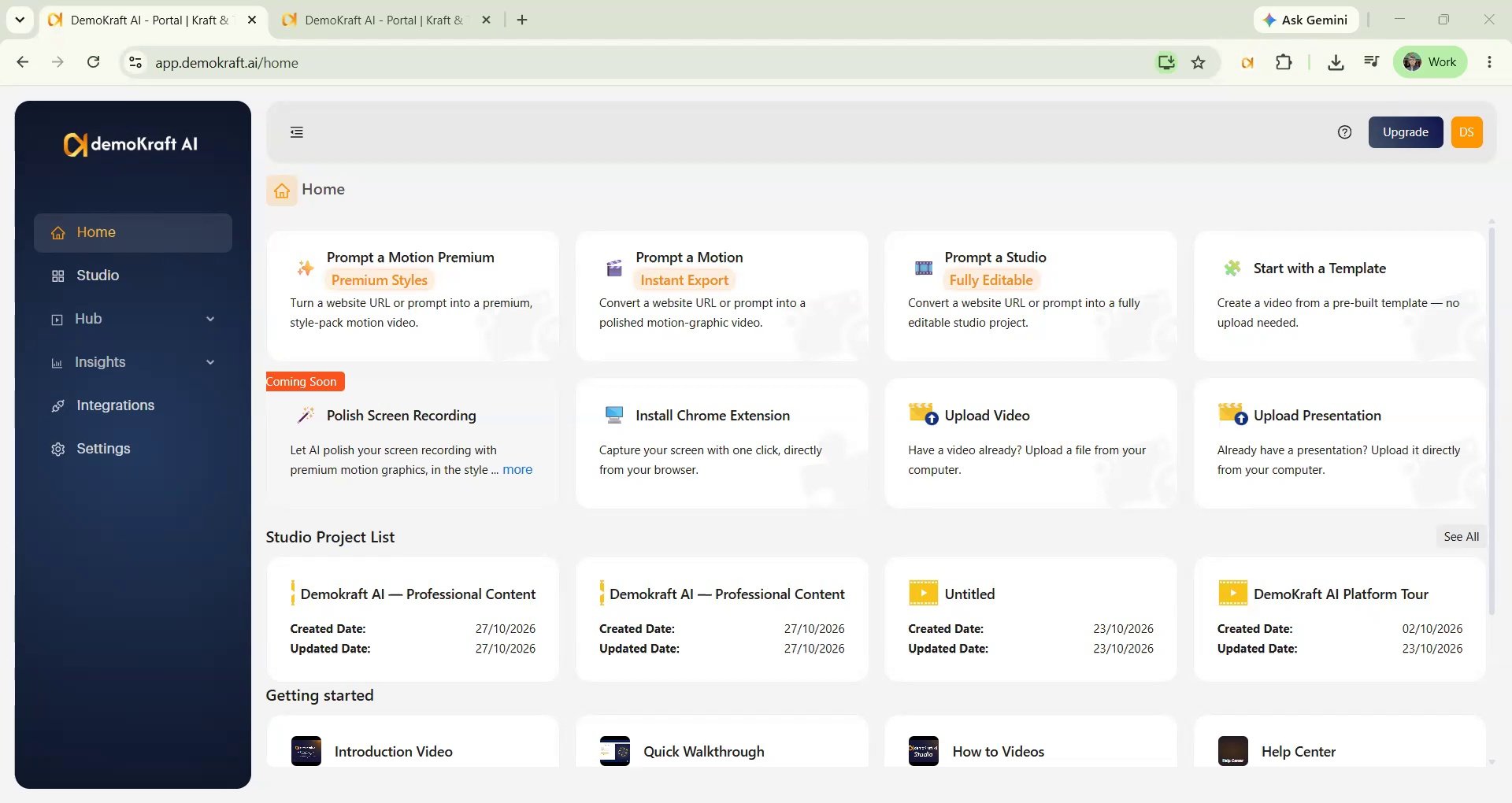
With Web URL
Prompt a Motion Premium creates product videos from a product description or an existing webpage. Set up the source, style, video settings, audio, and additional assets before selecting Generate Video.1
Select Prompt a Motion Premium
From the home page, select Prompt a Motion Premium.
2
Choose a setup tab
Choose a setup tab: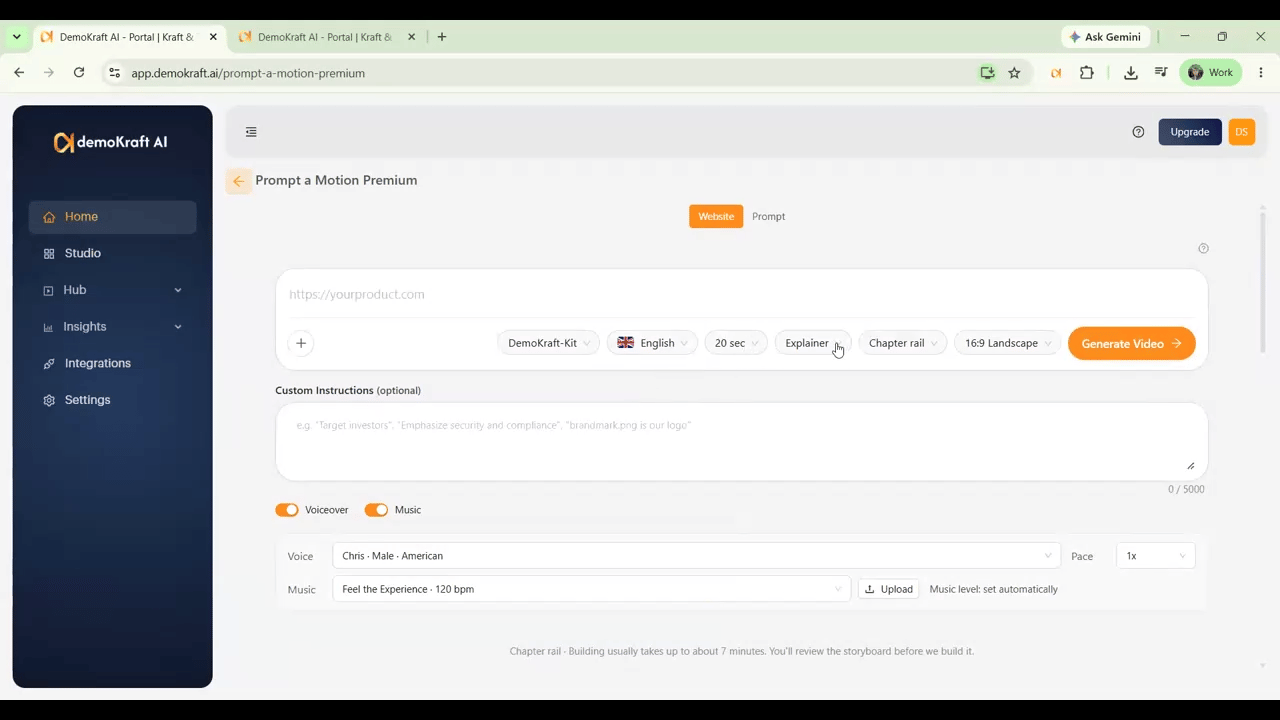
- Website URL tab: Create the video from an existing webpage.
- Prompt tab: Describe the product and video purpose without using a website URL.
3
Configure video settings and generate
Configure the video settings, add assets, and select Generate Video: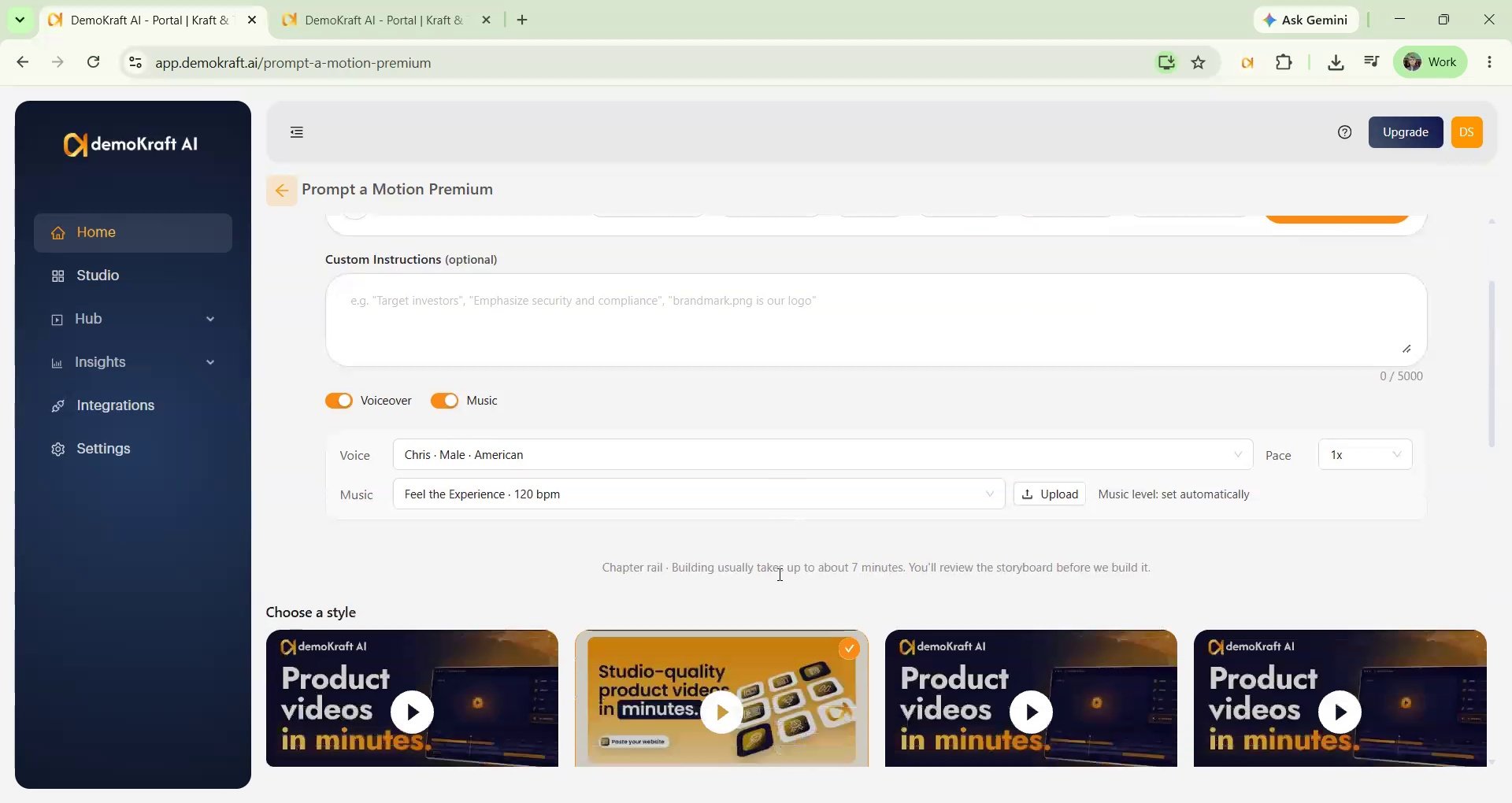
- Preview the style samples, then select a style. Nine styles are currently available, with more planned for future releases.
- Select a format: landscape (16:9), portrait (9:16), or square (1:1). See Video formats.
- Select the language: English, French, German, Spanish, Portuguese, Hindi, Marathi, Bengali, Gujarati, Punjabi, Tamil, Telugu, Kannada, Japanese, Korean, or Chinese. Two styles (Motif reel and Token morph) support only English, French, German, Spanish, and Portuguese; when you select another language, they are hidden from the style list.
- Set the duration: 20, 30, 45, 60, 75, or 90 seconds (free plans: 20 seconds).
- Attach a Brand kit to apply your brand details throughout the video. See the Brand Kit guide.
- Choose whether to include a voiceover and background music, then select from the available options. Turn off the voiceover to create a music-only video. Voiceover and music cannot both be off.
- Use each style’s default voice and music selections, or upload your own music file.
- Add up to five product screenshots or other assets that are not available on the website.
- If you did not attach a Brand kit, upload your logo and any additional assets you want to include.
- Select Generate Video to begin.
With prompt
The Prompt tab lets you create a video without a website URL. Provide the product information, visual assets, and brand settings before continuing.1
Describe your product
In the Prompt tab, describe your product and the purpose of the video. Use the sample description as a guide.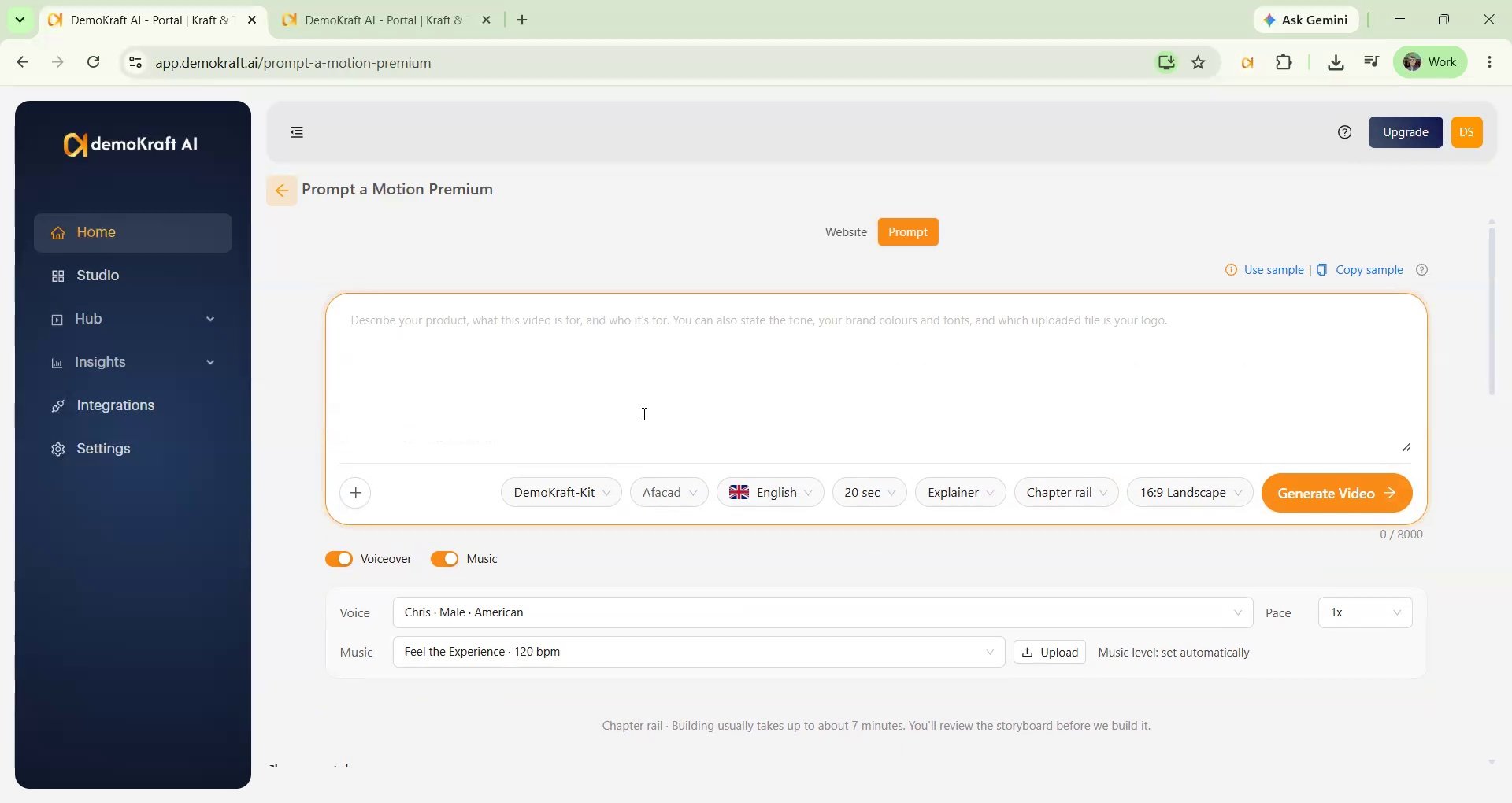
2
Add assets and brand colors
Attach relevant images and provide any required assets and brand colors:
- If a Brand kit is selected in the color palette, it supplies the brand details instead. Colors or a font you write in the prompt still take priority.
- Alternatively, choose from the preset color combinations.
3
Apply fonts and remaining settings
Use the attached Brand kit for fonts and other brand details. Set the language and remaining settings from the options available.
Video formats
Every style can create videos in three formats:- Choose the format before you select Generate Video. A format a style does not support appears greyed out.
- Studio Editor shows a portrait or square video in its own shape, in normal and full-screen view.
- By default, captions sit above the area that social apps cover with their controls on portrait videos, and inside the frame on square videos.
- The export keeps the format. The resolution names the short side: in portrait, 1080p exports at 1080x1920; in square, at 1080x1080.
Generate and approve the storyboard
Prompt a Motion Premium prepares a storyboard from your product description or Website URL tab. Review the storyboard before the platform builds your video.1
Initiate video generation
Select Generate Video to process the product description or website URL you provided:
- If you provided a website URL, the platform scans it, retrieves relevant details and images, and prepares a storyboard for review.
2
Review the storyboard
Review the storyboard and provide feedback to regenerate it (up to three rounds), or approve it when you are satisfied.
- The top of the storyboard confirms the style, format (landscape, portrait, or square), and length you chose.
3
Approve the storyboard
Approving the storyboard starts video generation.
4
Wait for processing
Allow the platform time to complete the process and deliver your video: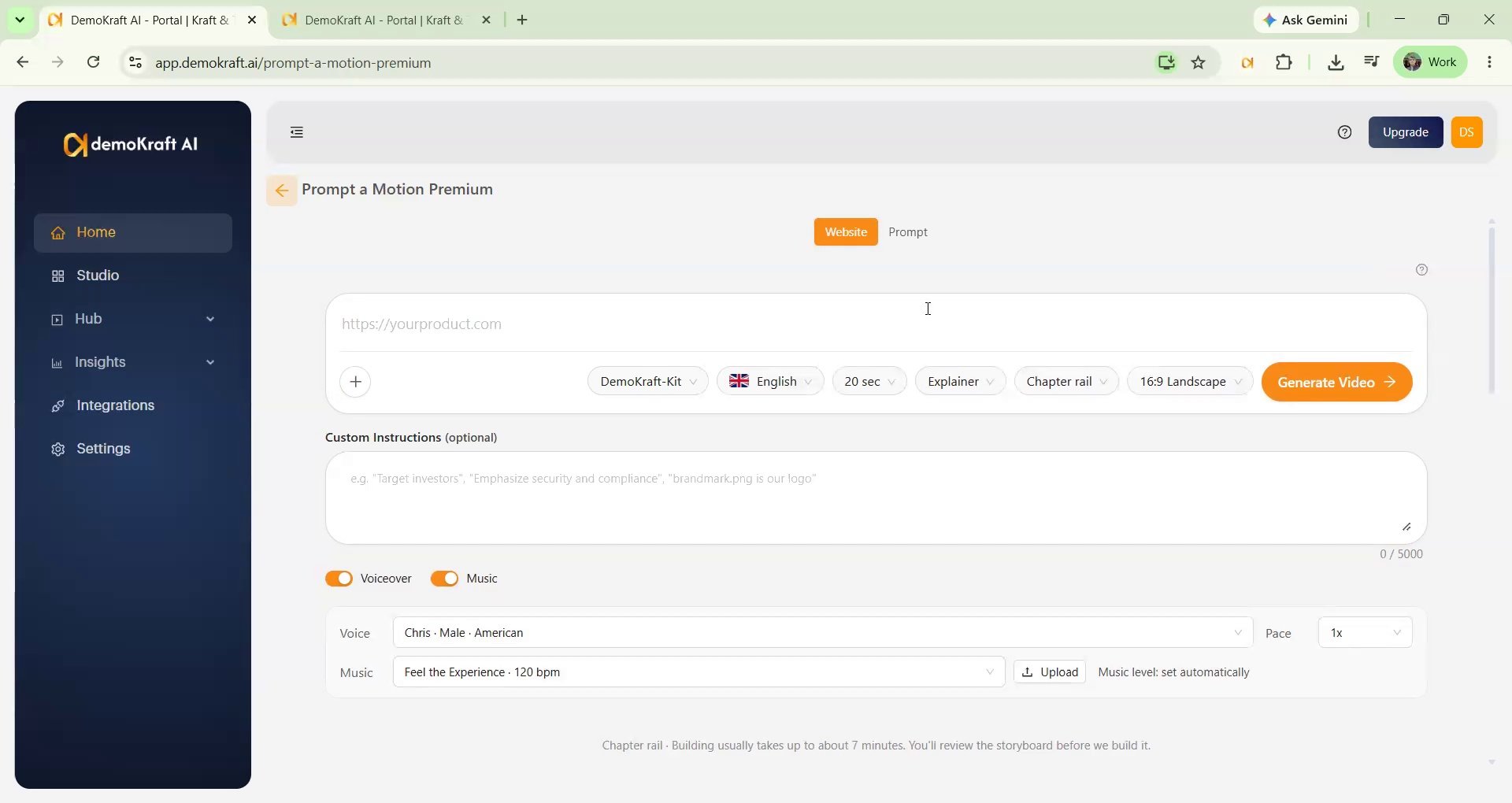
- Storyboard preparation and video generation may take five to ten minutes, depending on the selected duration.
- Free users can create videos up to 20 seconds long. Paid users can generate videos up to 90 seconds long.
- Generation time also depends on the selected style and other settings.
- You can close the page while it runs. Reopen the project from the home page to continue where you left off.
Review and export the video
Once the video is built, it opens in a new tab in Studio Editor. Use Studio Editor to play back and review the completed video, add captions, revise the draft, and export it.1
Review the playback
Open the completed video in Studio Editor and play it back to review the result.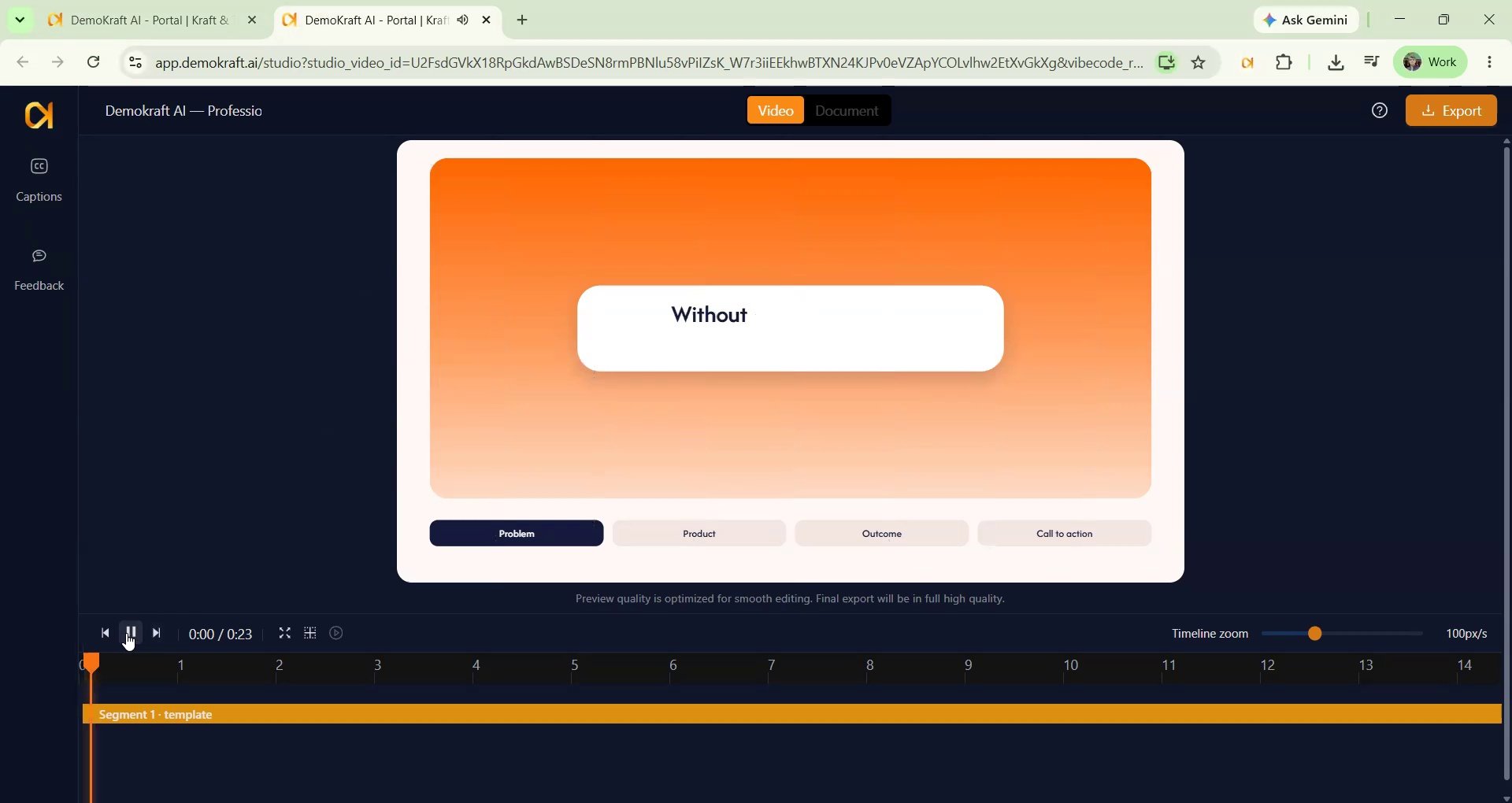
2
Refine the draft
Review and refine the draft in Studio Editor: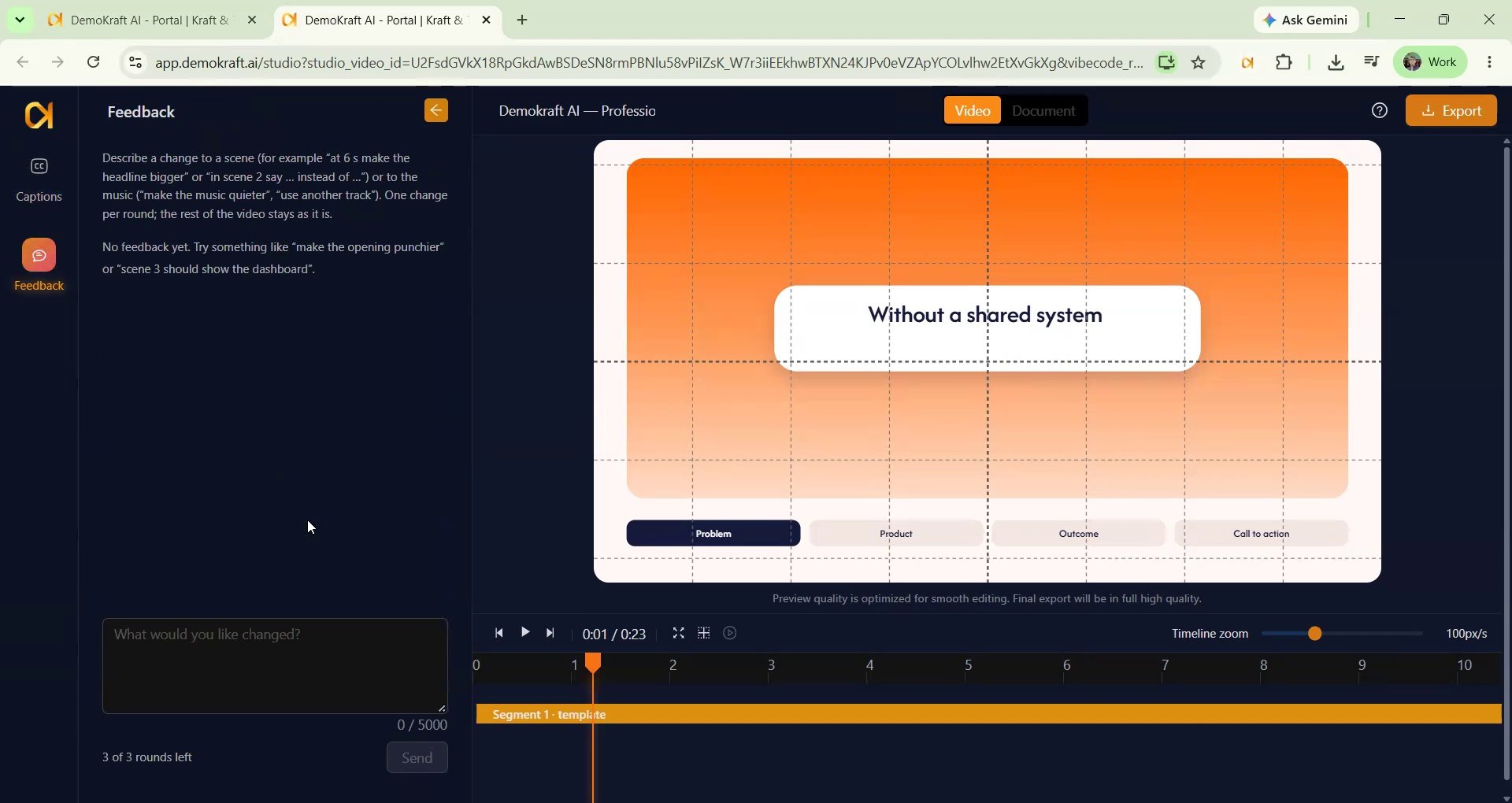
- Choose a caption style and apply it to the video.
- If you are a paid user, open Feedback and describe a change in writing (name the scene or time, for example “at 6 s make the headline bigger”). The panel shows how many rounds you have left. This feature is not available to free users.
3
Export the video
Select Export when you are satisfied with the final video. The export process is the same as for other video features.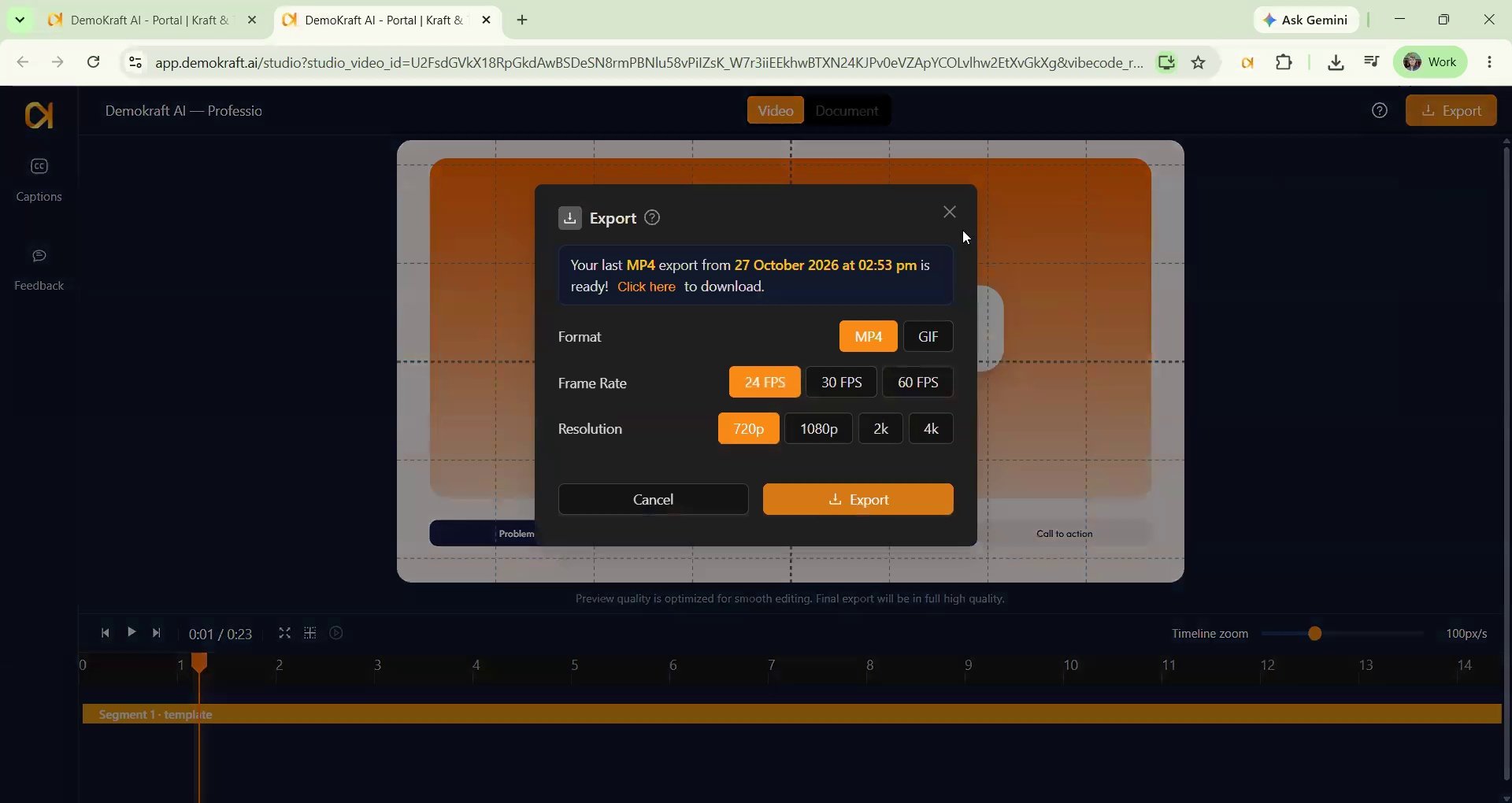
- Depending on your subscription, choose 720p, 1080p, 2K, or 4K. You can also create an animated GIF.
- Portrait and square videos export in their own shape, GIFs included (see Video formats).
- The first export takes a few minutes, because the video is rendered when you export.
A Prompt a Motion Premium video is one animated composition timed to its audio. To keep that timing intact, the editor offers playback, captions, Feedback, and export, but not the Script, Music, Background, Effects, Scenes, Objects, and Templates panels, Presets, Translate, or the Document tab.