
Introduction
In this guide we will explain how to generate guide/docs for your video.Accessing the Document Tab
Once you finish editing your video, proceed to the Document tab (at the top of the editor besides “Video” tab). This is where you can transform your video content into a structured document. Your video script becomes input to generate doc, so select document tab only after your script is final. Once the doc is generated it can be edited on its own in document tab.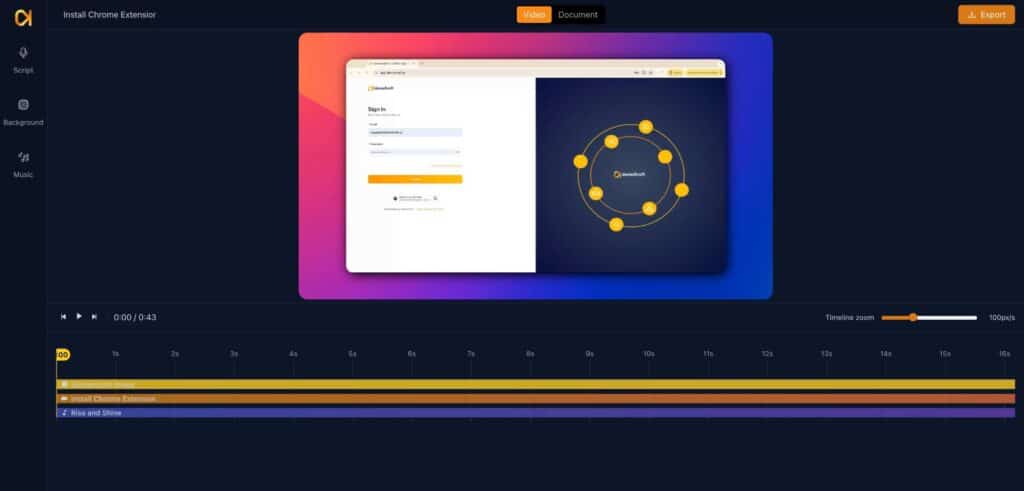
Viewing the Structured Document
In the Document tab, your content is organized into a clear format featuring titles, subtitles, descriptive text, and relevant screenshots extracted from the video. This structure helps you present your material effectively.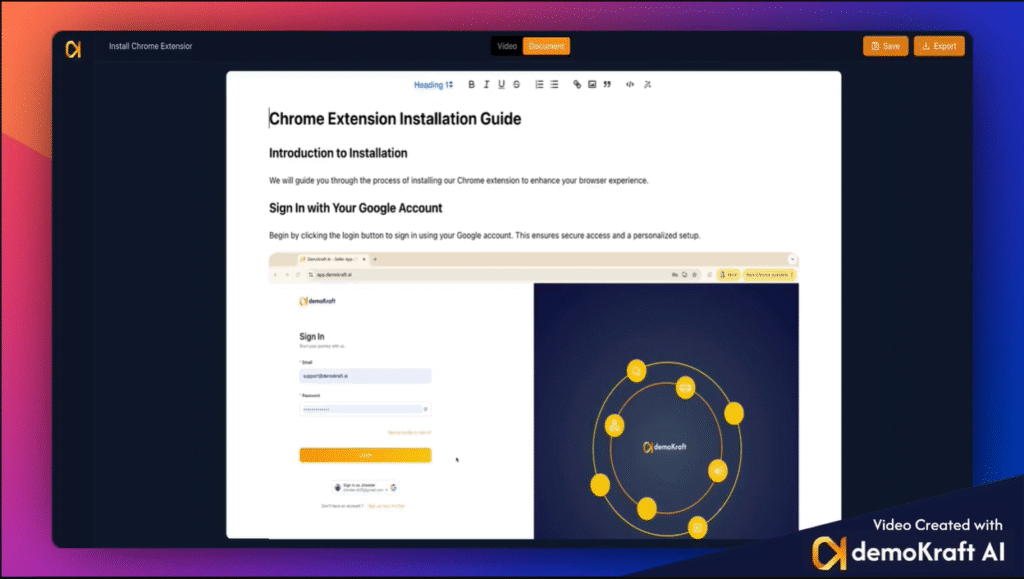
Refining Text Sections
You can review and manually edit the text if you want or use AI to enhance the text.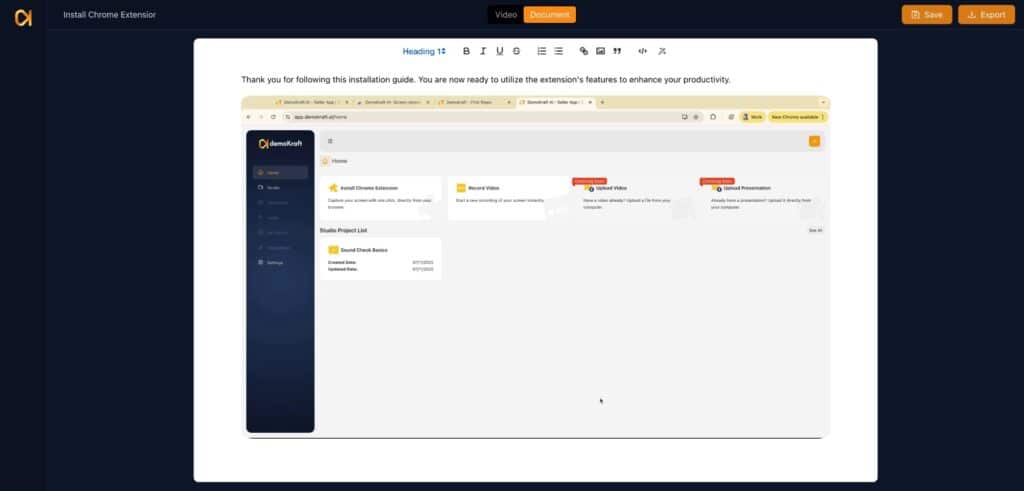
Selecting Text for Rewrite
You can choose to select all the text in a paragraph or focus on specific portions. This flexibility lets you target exactly what you want to enhance in your document.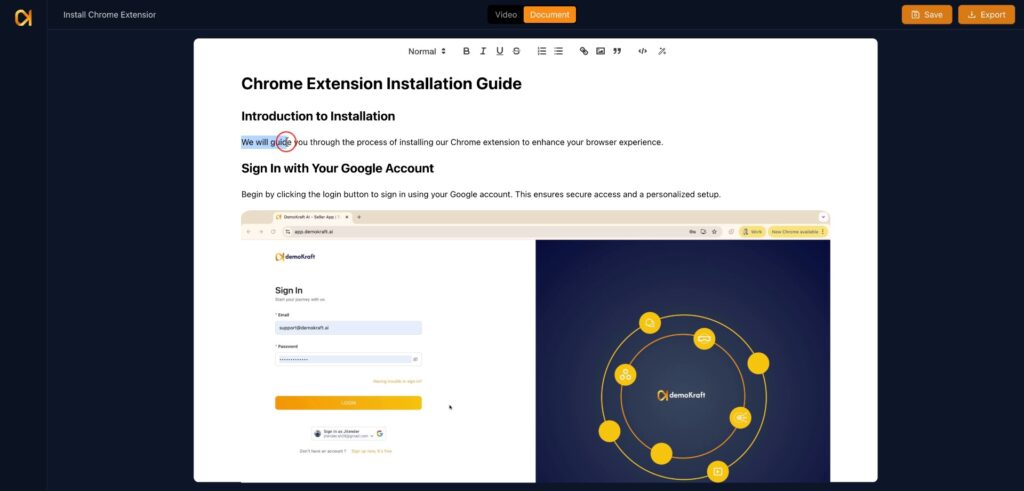
Using AI Rewrite for Clarity
After selecting the text, click on the AI Rewrite option. This tool helps you improve clarity and professionalism, ensuring your document communicates your message effectively.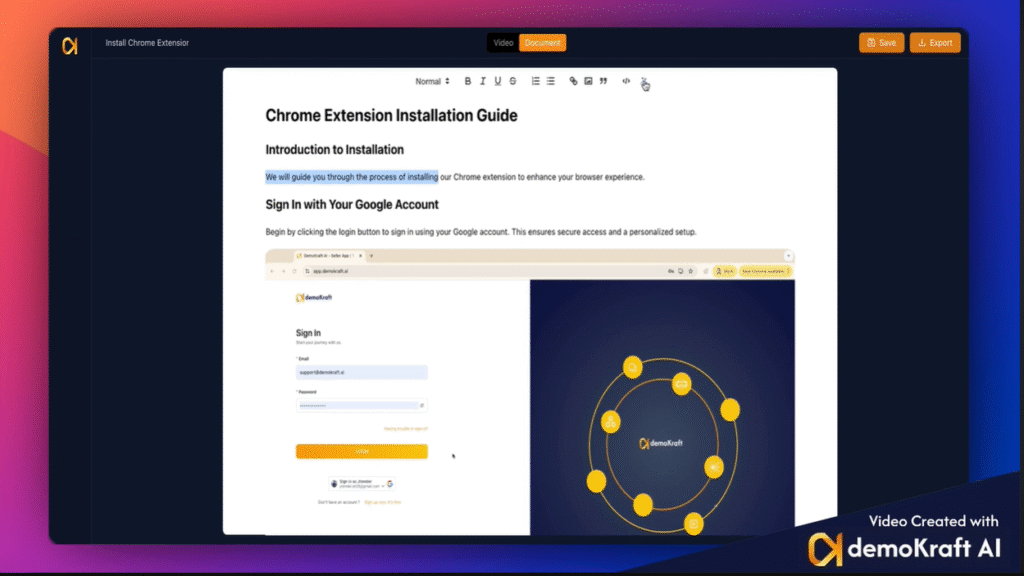
Manual Text Editing
If you prefer direct control, simply type your changes into the text section. This lets you fine-tune content precisely to meet your needs.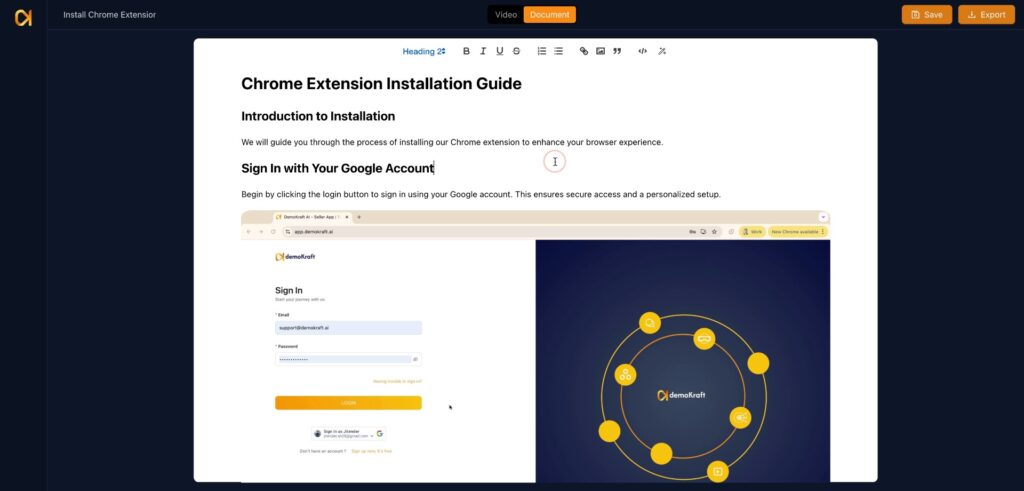
Adding Images to Your Document
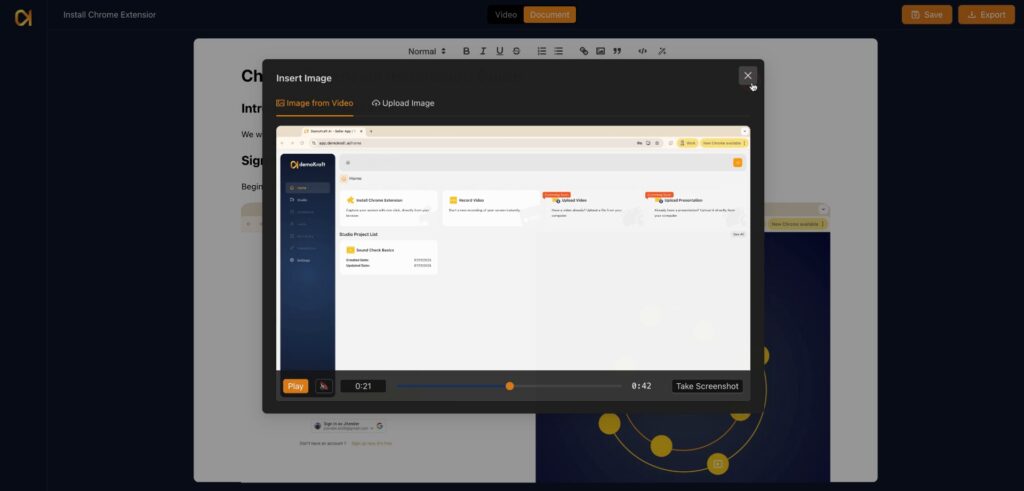
To enrich your article or document with visuals, click the Image button. This feature allows you to incorporate additional screenshots seamlessly.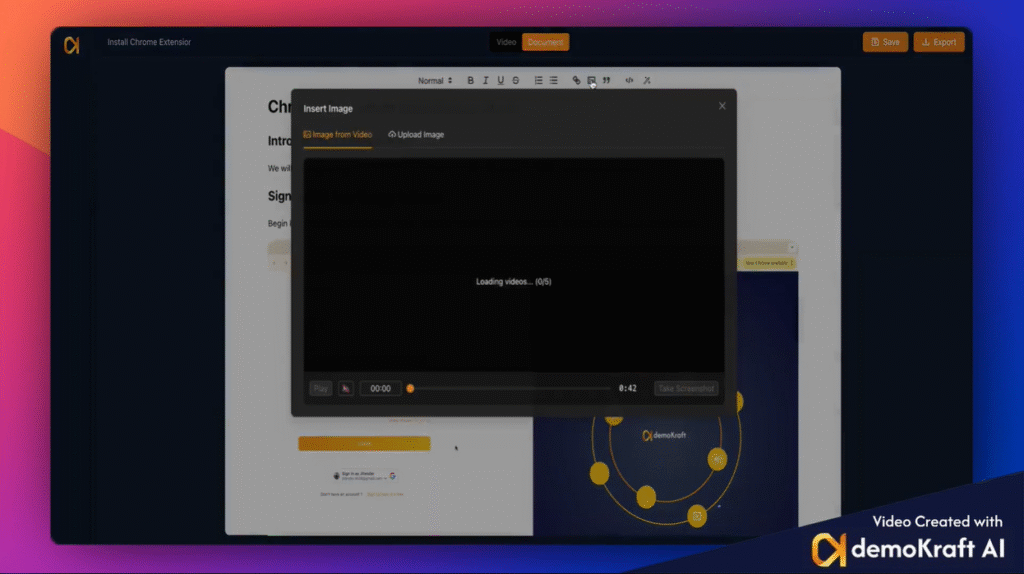
Uploading and Selecting Screenshots
You can upload images directly from your device or choose from screenshots captured within your recorded video, enhancing your document with relevant visuals. Sometimes already selected screenshots might not be accurate, so you can correct them by selecting correct screenshots using above options.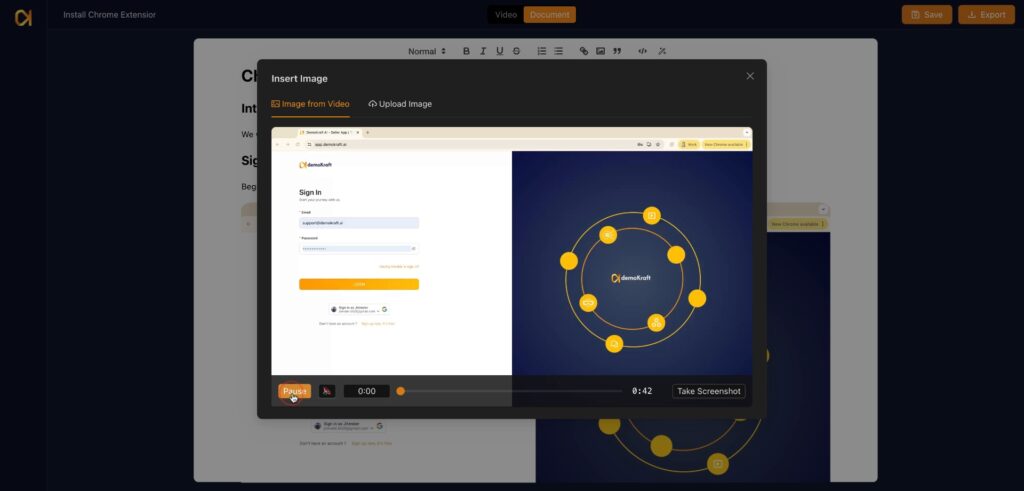
Navigating Video Frames
While playing your video, use the frame strip that moves from left to right to scroll manually through individual frames. This precise navigation helps you find the perfect moments for screenshots.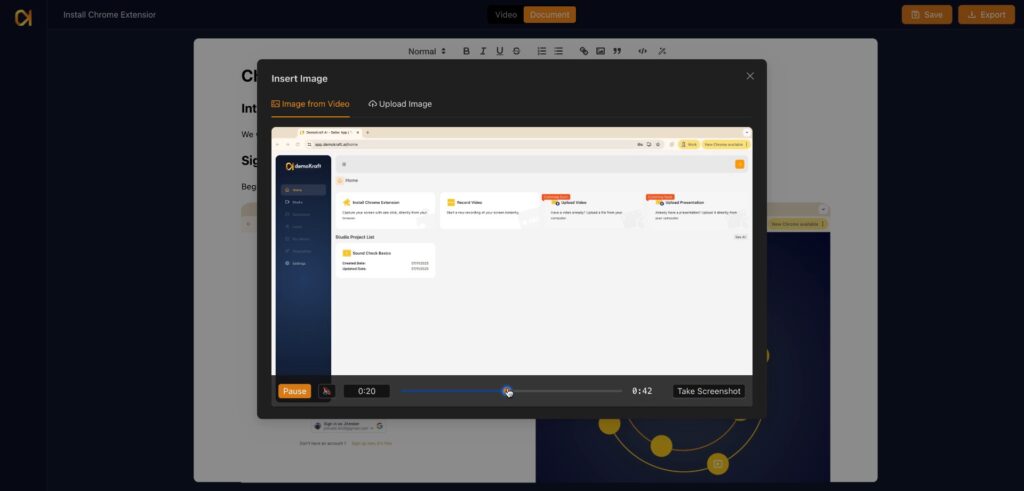
Capturing Screenshots
At any frame during playback, simply click the screenshot button to capture that exact image. This capability enables you to include contextually significant visuals in your document.Integrating Screenshots and Saving
Captured screenshots are automatically added to your document. Don’t forget to save by clicking Save your changes regularly to preserve all your enhancements and updates. You can use Export option above to download the document as markdown or html or mintlify mdx file.