
Brand Kit overview
Brand Kit is an AI feature in Demokraft for managing reusable brand details across your videos.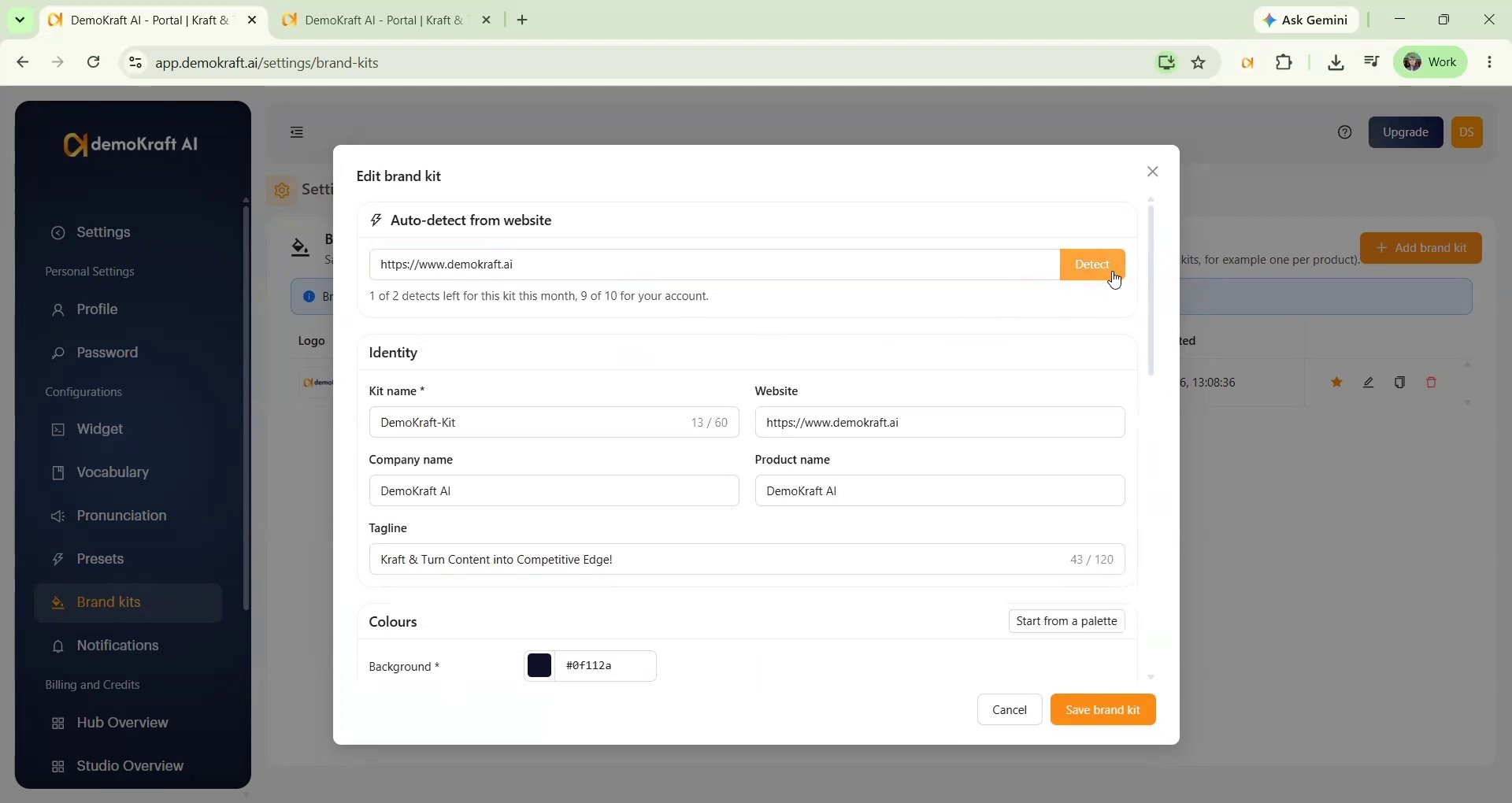
Create and configure a Brand Kit
A Brand Kit identifies brand details and guidelines for videos. Use these steps to create one, review the detected details, set the brand voice, and save the configuration.1
Open Settings
Open Settings to view and manage existing Brand Kits.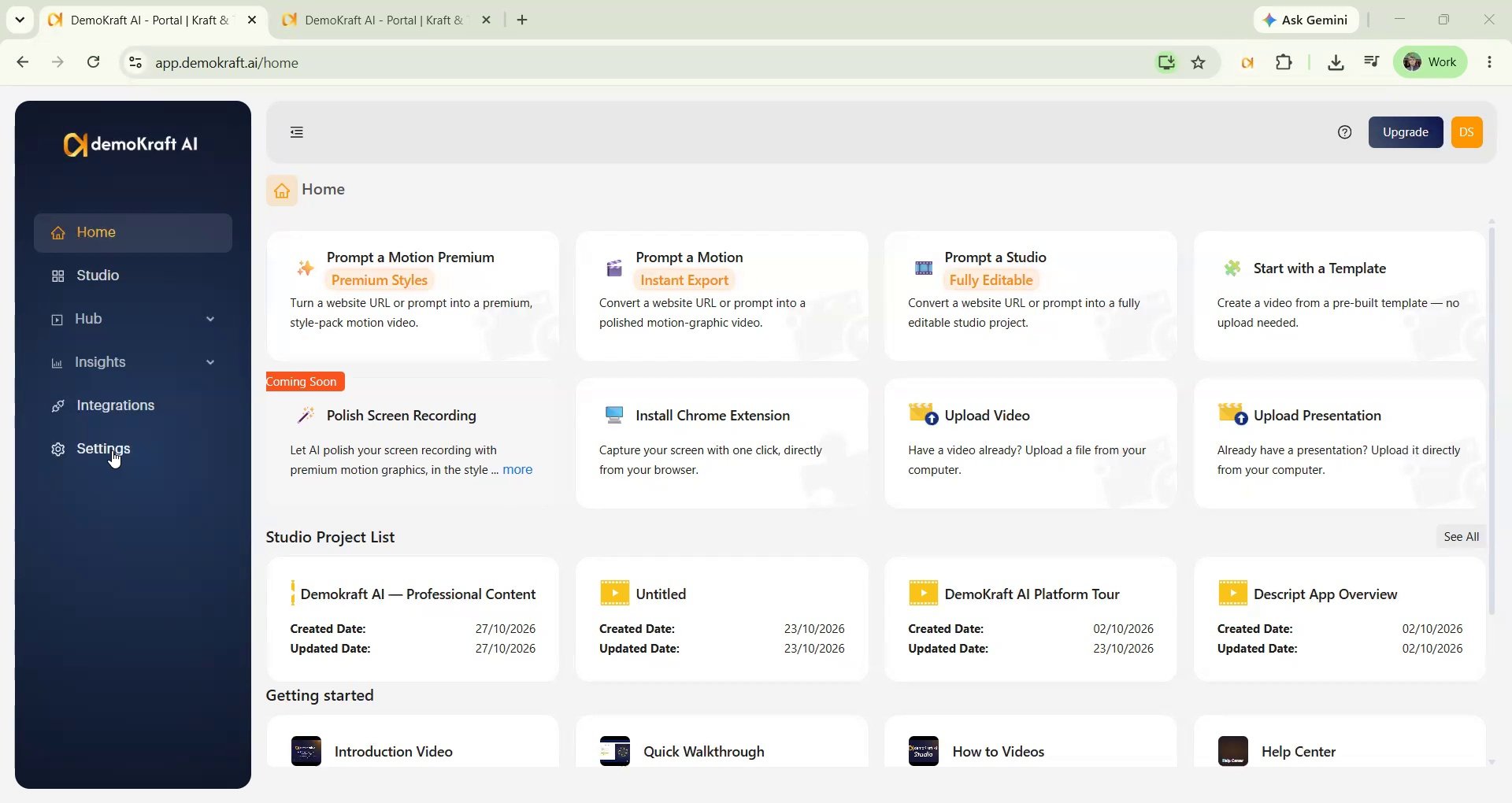
2
Add a brand kit
Select Add brand kit to create a Brand Kit.
3
Configure brand details
Enter the website that represents your brand, then select Detect (optional if you want to auto detect from a website, else you can fill manually).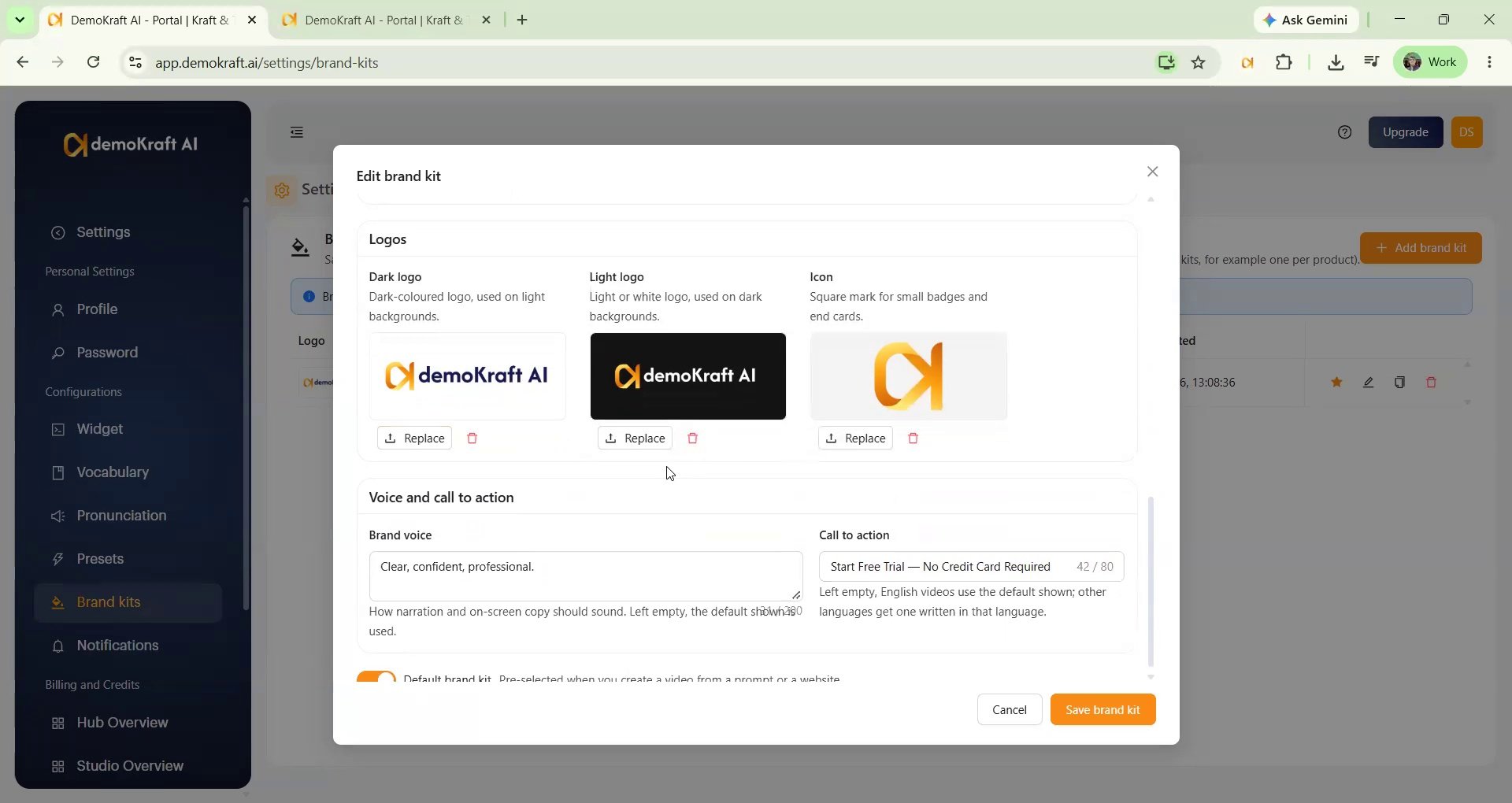
- Review and update the company name, product name, tagline, brand colors, fonts, logo, call to action, and favicon.
- Add both dark and light logo versions, along with your favicon, for complete coverage.
- Set the tone and speaking pace for your videos.
- Update any fields as needed, including fields filled by automatic detection.
- Select Save when the configuration is complete. You can associate the saved Brand Kit with videos you create.
- You can add/update/delete brand kits in this settings section.
- You can create up to 10 brand kits as per your needs.
Apply a Brand Kit to videos
Brand Kits work with Prompt a Studio, Prompt a Motion, and Prompt a Motion Premium. You select the kit the same way in all three.1
Open a prompt feature
From the home page, open Prompt a Studio, Prompt a Motion, or Prompt a Motion Premium.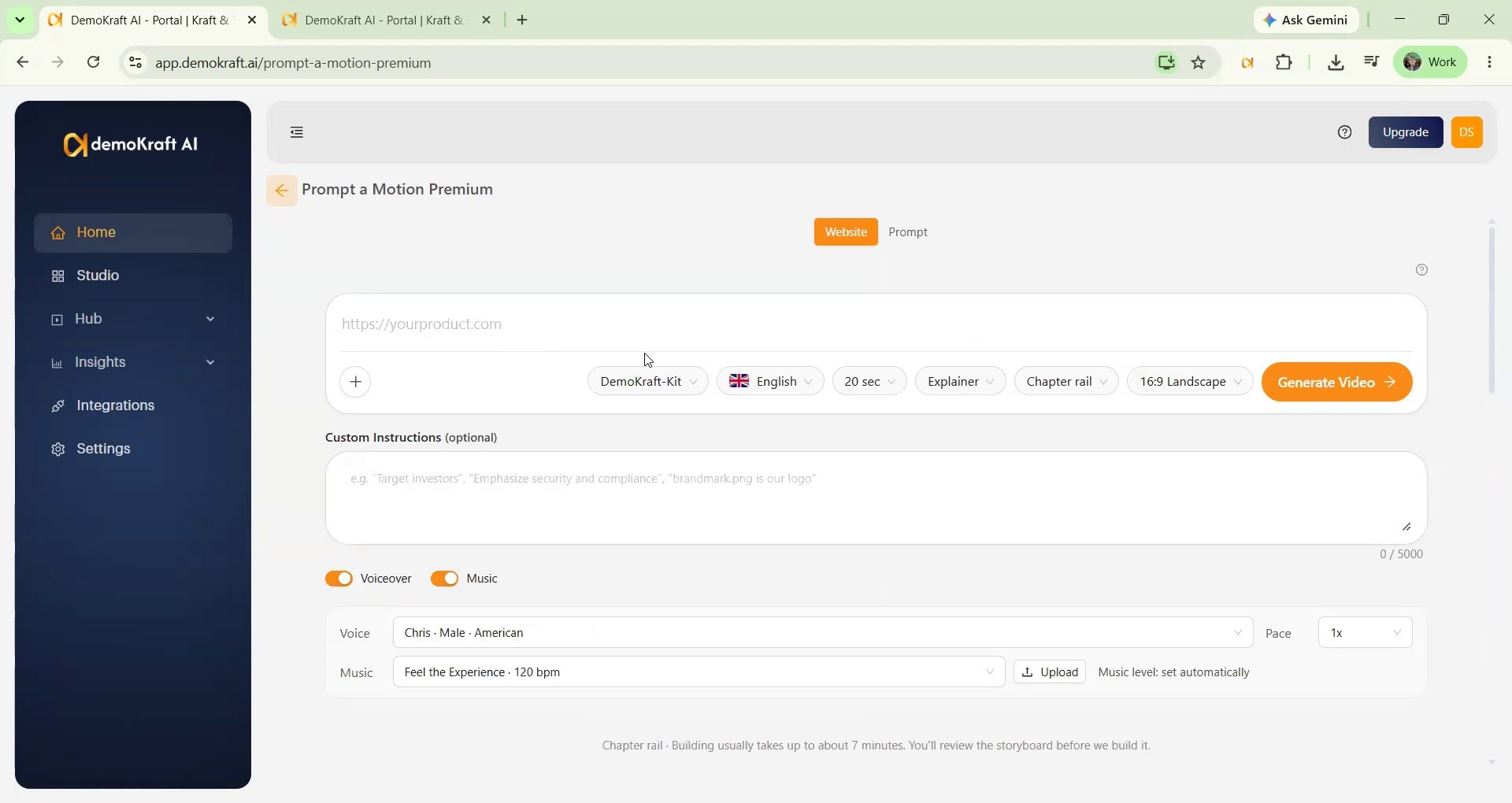
2
Set Brand Kit in website tab
In the website tab, set a Brand Kit (if you had a default kit it would be already set), or choose Auto Detect from Website for the URL you provide.
3
Select Brand Kit in prompt tab
In the prompt tab, under Color Palette select the Brand Kit. The Font picker switches to the kit’s font.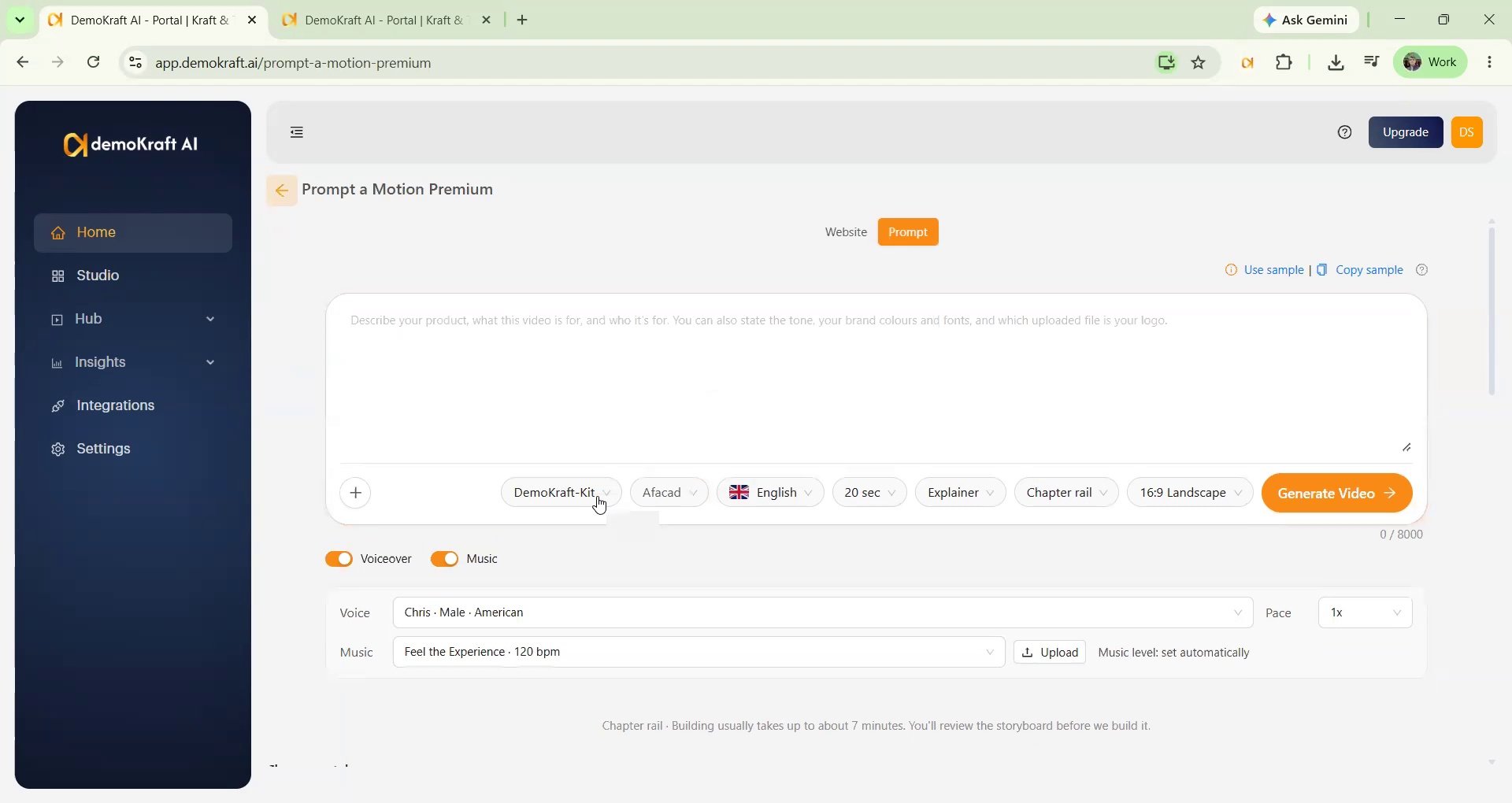
How a Brand Kit is applied
- Website tab: the kit’s details replace the ones detected from the website. Any field you left empty in the kit is taken from the website. If the kit belongs to a different website than the one you entered, a warning appears so you can switch to the site’s own brand.
- Prompt tab: colors or a font you write in the prompt take priority over the kit. The kit’s name, tagline, call to action, and website are used exactly as saved.
- Prompt a Studio: the Templates panel theme also starts with the kit’s colors and font. You can change it in the editor.
- The kit is read when generation starts. Changes you make to a kit later apply to new videos, not to ones already created.
Do not select a brand kit for a video if you want to generate a video with a different theme.