
Overview of Download Process
This guide explains the steps to download your finalized video and document files, ensuring you can easily preserve and share your content.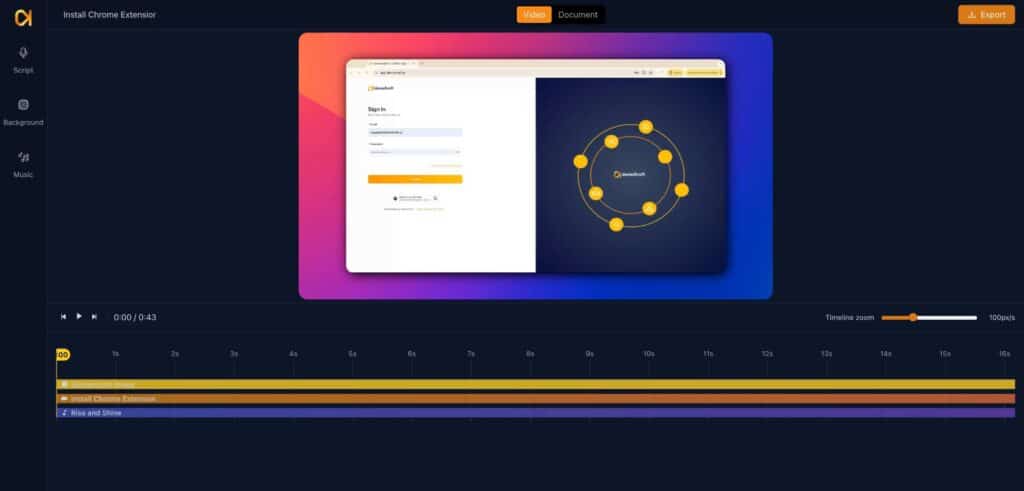
Initiating Video Download
Once you have edited and finalized your video or document, you can begin the export process. In the Studio editor with video project open, start by selecting click Export followed by Download to proceed.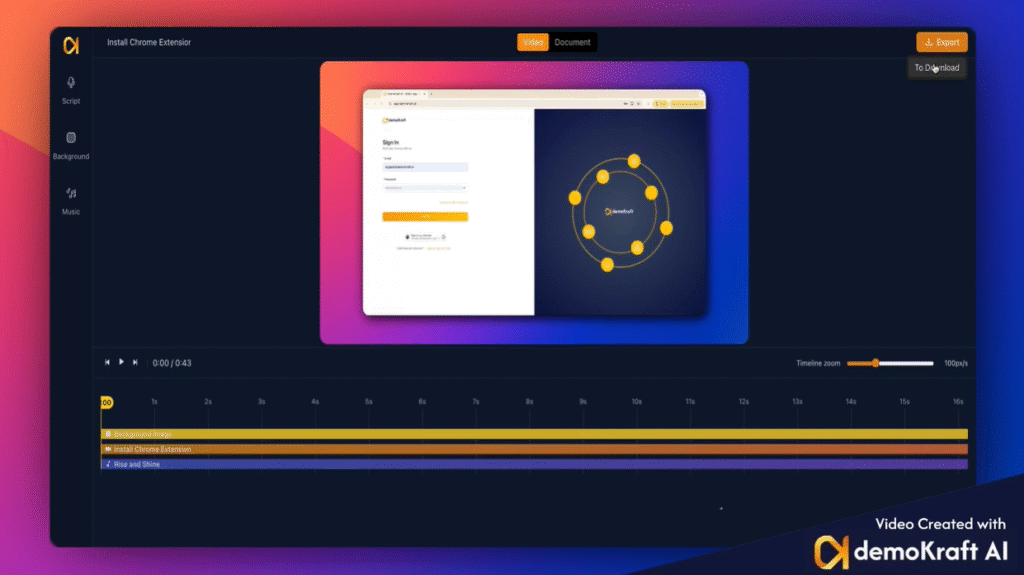
Selecting Video Format
You will see two format options for your video: MP4 and GIF. If you choose GIF, select the size you prefer, then click Export. The system will prepare the file in the background. When ready, a download link will appear for you to save the file to your device. If you select mp4 format, you can choose the resolution config available based on your subscription plan. We support 720p, 1080p, 2k, 4k options along with different fps rates.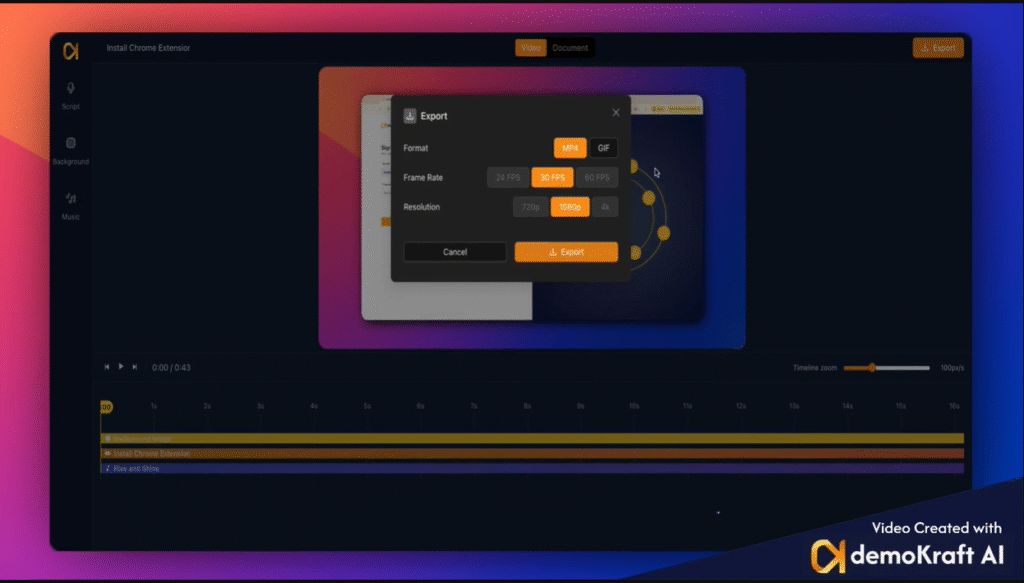
Downloading Documents Made Simple
To download your document, click on it first. After completing your edits, select Export and then choose Download to access format options for saving your file.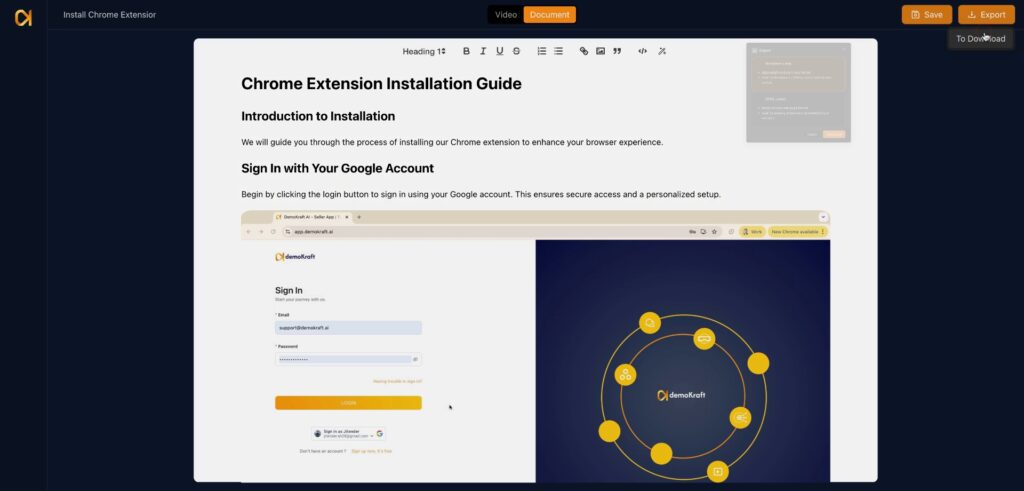
Document Format Choices
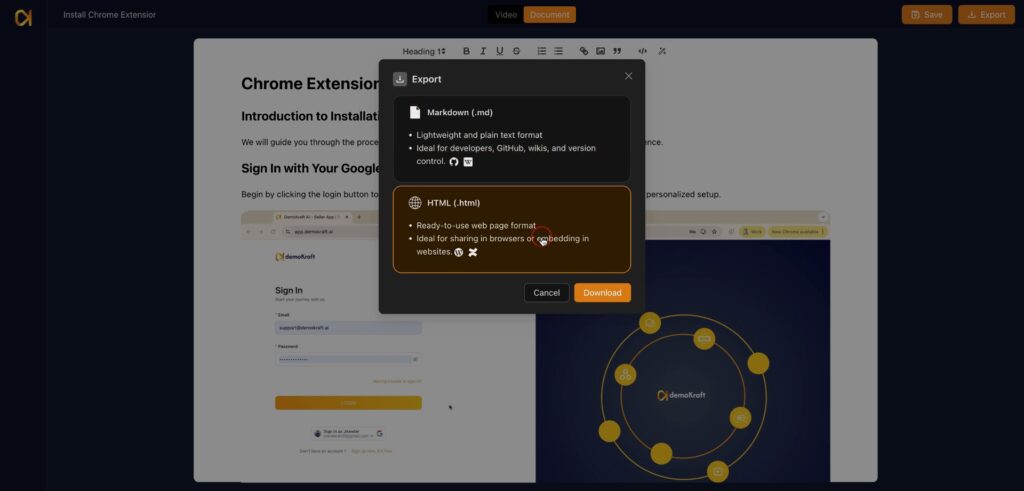
Your document can be downloaded in two formats:- Markdown: Best for local management or editing in any Markdown-compatible environment.
- HTML: Suitable for direct browser viewing or web embedding purposes.
Using and Saving HTML Documents
Selecting the HTML format provides a file that opens in your web browser or can be embedded directly into web pages. After selecting your preferred format, click Download to save the file onto your computer.