> ## Documentation Index
> Fetch the complete documentation index at: https://docs.demokraft.ai/llms.txt
> Use this file to discover all available pages before exploring further.
# Overview of Scene Options
> Learn how to add and customize Intro Templates, Outro Templates, and Chapter Break Templates to structure your video project.
## Overview of Scene Options
The system provides scene options that can be applied to your project. These options include Intro Template, Outro Template, and Chapter Break Template.
## Accessing Scene Options in Studio Mode
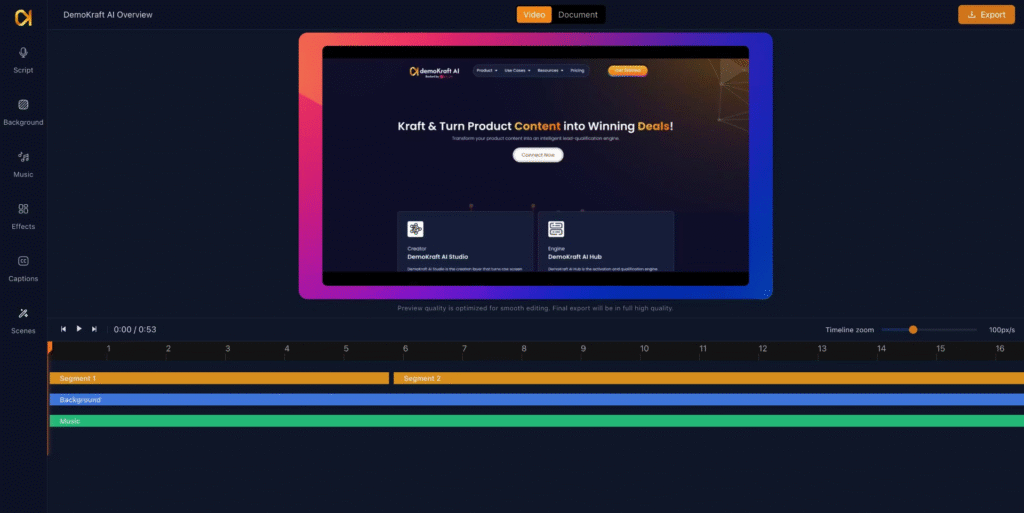
Open your existing project in studio mode to access the scene options. The scenes section is located on the left-hand side of the interface.
## Available Scene Types
There are three primary scene template options:
1. Intro Template
2. Outro Template
3. Chapter Break Template You select one of these to customize and add to your project.
## Applying an Intro Template
To apply an intro template, click on the Intro Template option. Then choose your preferred template from the available options by clicking the add button next to it.
## Customizing the Intro Title
After adding the intro template, customize it as needed using different template config options. Enter a title for the intro segment to reflect your content.
## Adding an Intro Subtitle
You can also add a subtitle in the intro template to provide additional context or welcome message.
## Selecting Background Tone for Intro
Choose from background tone options such as Warm, Cool, or Pure White to set the mood and appearance of your intro scene.
## Choosing Accent Color
Select an accent color that aligns with your brand identity to customize the visual elements of the intro scene.
## Accent Color Application
Apply the chosen accent color to enhance branding consistency within your intro template.
## Title Color and Font Style Customization
Adjust the title color as needed, keeping visual harmony in mind. Select a font style, such as Poppins, to match your design preferences.
## Setting Intro Scene Duration
Control the display duration of the intro scene by increasing or decreasing the time. The default is 3 seconds, but you can set it, for example, to 4 seconds.
## Applying the Intro Template
Click the Apply button to generate and add the intro segment to the beginning of your project. This action finalizes the intro's inclusion.
## Accessing and Applying Chapter Breaks
Navigate back to the scenes section to select the Chapter Break option. You can apply chapter breaks at any point within your project timeline to segment content. Place the player marker on a scene after which you want to add the Chapter break. Add the Chapter break template from options. Scene will get added to your video.
## Choosing a Chapter Break Template
Select a chapter card template from the available chapter break options by clicking the add button.
## Configuring Chapter Break Label and Number
Specify the chapter label text and the chapter number to clearly identify and organize different sections within your project.
## Defining Chapter Title
Enter the title of the chapter to indicate its content focus.
## Adding a Subtitle to Chapter Break
Include a subtitle for the chapter break scene to provide supplementary information or welcoming text.
## Selecting Background Tone and Layout for Chapter Break
Choose the background tone, such as cool, and set the layout alignment (left, right, or center) of the chapter break scene.
## Customizing Brand Color for Chapter Break
Select the brand color to maintain visual consistency for the chapter break scene.
## Setting Font and Chapter Number Display
Choose a font type and confirm the chapter number display styling within the chapter break card.
## Adjusting Chapter Break Duration and Applying
Set the scene duration, defaulting to 3 seconds, with options to increase or decrease the time. Click Apply to add the chapter break to your project timeline.
## Applying Outro Templates
Similar to Intro and Chapter break sceen you can add Outro Scene. Access multiple outro templates from Scenes panel to select and add an appropriate ending scene to your project.
## Customizing Outro Headline
Modify the headline text within the outro template to deliver your desired closing message.
## Setting Call to Action (CTA) Label
Configure the CTA button label within the outro template, selecting from available button options such as "Sign Up".
## Adding Outro Subtitle
Include a subtitle or secondary label to complement the outro scene's messaging.
## Customizing Outro Colors and Fonts
Adjust colors for various outro elements including background, CTA button, CTA text, and headline. Select a font style consistent with your branding.
## Setting Outro Timing and Applying
Define the timing duration for the outro scene and click Apply to integrate it into your project.
## Managing Scene Additions
You can add and configure multiple chapters, as well as apply intro and outro templates, to structure your project effectively.
 ## Accessing Scene Options in Studio Mode
Open your existing project in studio mode to access the scene options. The scenes section is located on the left-hand side of the interface.
## Accessing Scene Options in Studio Mode
Open your existing project in studio mode to access the scene options. The scenes section is located on the left-hand side of the interface.
 ## Available Scene Types
There are three primary scene template options:
1. Intro Template
2. Outro Template
3. Chapter Break Template You select one of these to customize and add to your project.
## Available Scene Types
There are three primary scene template options:
1. Intro Template
2. Outro Template
3. Chapter Break Template You select one of these to customize and add to your project.
 ## Applying an Intro Template
To apply an intro template, click on the Intro Template option. Then choose your preferred template from the available options by clicking the add button next to it.
## Applying an Intro Template
To apply an intro template, click on the Intro Template option. Then choose your preferred template from the available options by clicking the add button next to it.
 ## Adding an Intro Subtitle
You can also add a subtitle in the intro template to provide additional context or welcome message.
## Adding an Intro Subtitle
You can also add a subtitle in the intro template to provide additional context or welcome message.
 ## Selecting Background Tone for Intro
Choose from background tone options such as Warm, Cool, or Pure White to set the mood and appearance of your intro scene.
## Selecting Background Tone for Intro
Choose from background tone options such as Warm, Cool, or Pure White to set the mood and appearance of your intro scene.
 ## Choosing Accent Color
Select an accent color that aligns with your brand identity to customize the visual elements of the intro scene.
## Choosing Accent Color
Select an accent color that aligns with your brand identity to customize the visual elements of the intro scene.
 ## Accent Color Application
Apply the chosen accent color to enhance branding consistency within your intro template.
## Accent Color Application
Apply the chosen accent color to enhance branding consistency within your intro template.
 ## Title Color and Font Style Customization
Adjust the title color as needed, keeping visual harmony in mind. Select a font style, such as Poppins, to match your design preferences.
## Title Color and Font Style Customization
Adjust the title color as needed, keeping visual harmony in mind. Select a font style, such as Poppins, to match your design preferences.
 ## Setting Intro Scene Duration
Control the display duration of the intro scene by increasing or decreasing the time. The default is 3 seconds, but you can set it, for example, to 4 seconds.
## Setting Intro Scene Duration
Control the display duration of the intro scene by increasing or decreasing the time. The default is 3 seconds, but you can set it, for example, to 4 seconds.
 ## Applying the Intro Template
Click the Apply button to generate and add the intro segment to the beginning of your project. This action finalizes the intro's inclusion.
## Applying the Intro Template
Click the Apply button to generate and add the intro segment to the beginning of your project. This action finalizes the intro's inclusion.
 ## Accessing and Applying Chapter Breaks
Navigate back to the scenes section to select the Chapter Break option. You can apply chapter breaks at any point within your project timeline to segment content. Place the player marker on a scene after which you want to add the Chapter break. Add the Chapter break template from options. Scene will get added to your video.
## Accessing and Applying Chapter Breaks
Navigate back to the scenes section to select the Chapter Break option. You can apply chapter breaks at any point within your project timeline to segment content. Place the player marker on a scene after which you want to add the Chapter break. Add the Chapter break template from options. Scene will get added to your video.
 ## Choosing a Chapter Break Template
Select a chapter card template from the available chapter break options by clicking the add button.
## Choosing a Chapter Break Template
Select a chapter card template from the available chapter break options by clicking the add button.
 ## Configuring Chapter Break Label and Number
Specify the chapter label text and the chapter number to clearly identify and organize different sections within your project.
## Configuring Chapter Break Label and Number
Specify the chapter label text and the chapter number to clearly identify and organize different sections within your project.
 ## Defining Chapter Title
Enter the title of the chapter to indicate its content focus.
## Defining Chapter Title
Enter the title of the chapter to indicate its content focus.
 ## Adding a Subtitle to Chapter Break
Include a subtitle for the chapter break scene to provide supplementary information or welcoming text.
## Adding a Subtitle to Chapter Break
Include a subtitle for the chapter break scene to provide supplementary information or welcoming text.
 ## Selecting Background Tone and Layout for Chapter Break
Choose the background tone, such as cool, and set the layout alignment (left, right, or center) of the chapter break scene.
## Selecting Background Tone and Layout for Chapter Break
Choose the background tone, such as cool, and set the layout alignment (left, right, or center) of the chapter break scene.
 ## Customizing Brand Color for Chapter Break
Select the brand color to maintain visual consistency for the chapter break scene.
## Customizing Brand Color for Chapter Break
Select the brand color to maintain visual consistency for the chapter break scene.
 ## Setting Font and Chapter Number Display
Choose a font type and confirm the chapter number display styling within the chapter break card.
## Setting Font and Chapter Number Display
Choose a font type and confirm the chapter number display styling within the chapter break card.
 ## Adjusting Chapter Break Duration and Applying
Set the scene duration, defaulting to 3 seconds, with options to increase or decrease the time. Click Apply to add the chapter break to your project timeline.
## Adjusting Chapter Break Duration and Applying
Set the scene duration, defaulting to 3 seconds, with options to increase or decrease the time. Click Apply to add the chapter break to your project timeline.
 ## Applying Outro Templates
Similar to Intro and Chapter break sceen you can add Outro Scene. Access multiple outro templates from Scenes panel to select and add an appropriate ending scene to your project.
## Applying Outro Templates
Similar to Intro and Chapter break sceen you can add Outro Scene. Access multiple outro templates from Scenes panel to select and add an appropriate ending scene to your project.
 ## Customizing Outro Headline
Modify the headline text within the outro template to deliver your desired closing message.
## Customizing Outro Headline
Modify the headline text within the outro template to deliver your desired closing message.
 ## Setting Call to Action (CTA) Label
Configure the CTA button label within the outro template, selecting from available button options such as "Sign Up".
## Setting Call to Action (CTA) Label
Configure the CTA button label within the outro template, selecting from available button options such as "Sign Up".
 ## Adding Outro Subtitle
Include a subtitle or secondary label to complement the outro scene's messaging.
## Adding Outro Subtitle
Include a subtitle or secondary label to complement the outro scene's messaging.
 ## Customizing Outro Colors and Fonts
Adjust colors for various outro elements including background, CTA button, CTA text, and headline. Select a font style consistent with your branding.
## Customizing Outro Colors and Fonts
Adjust colors for various outro elements including background, CTA button, CTA text, and headline. Select a font style consistent with your branding.
 ## Setting Outro Timing and Applying
Define the timing duration for the outro scene and click Apply to integrate it into your project.
## Setting Outro Timing and Applying
Define the timing duration for the outro scene and click Apply to integrate it into your project.
 ## Managing Scene Additions
You can add and configure multiple chapters, as well as apply intro and outro templates, to structure your project effectively.
## Managing Scene Additions
You can add and configure multiple chapters, as well as apply intro and outro templates, to structure your project effectively.
