> ## Documentation Index
> Fetch the complete documentation index at: https://docs.demokraft.ai/llms.txt
> Use this file to discover all available pages before exploring further.
# How to Add Background Music to Your Video Project
> Learn how to integrate, activate, and balance background music track within your video timeline.
## Introduction to Background Music
In this guide, we will walk you through the process of integrating background music into your video project. Adding music can significantly enhance the viewer's experience and set the tone for your content.
## Accessing the Music Section
To begin, open your project and navigate to the Music section located on the left side of your editor. This option provides all the necessary controls and options to manage music applied to your video.
## Selecting and Activating Background Music
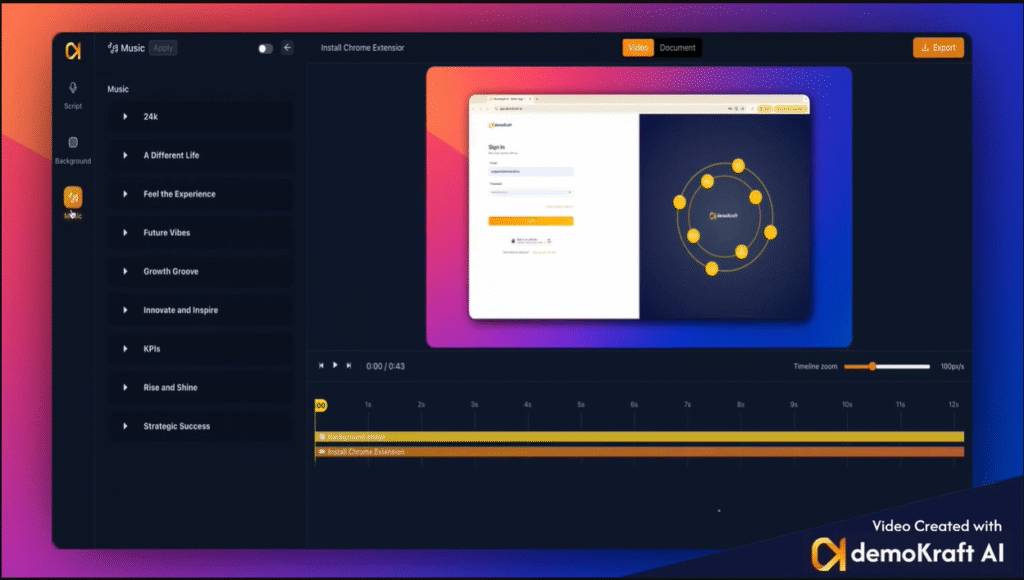
Activate the Background Music feature within the Music section using the toggle enable switch. Next, browse through the available selection of tracks to find one that best complements the mood and style of your video. Once you've selected a suitable track, proceed to apply it to your project.
## Adjusting Volume Settings
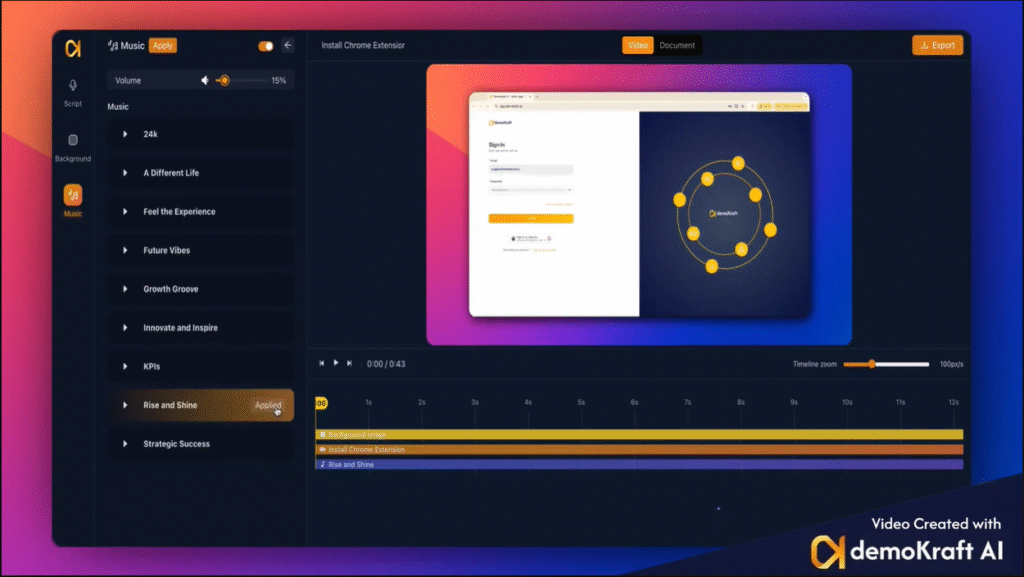
After applying the background music, you can fine-tune its volume to ensure it blends appropriately with your video's audio. The default volume setting is 15%, but you have the flexibility to increase or decrease this level based on your preferences and the context of your content.
You can playback the video in realtime and check how the music is applied to your video.
## Applying Settings and Finalizing
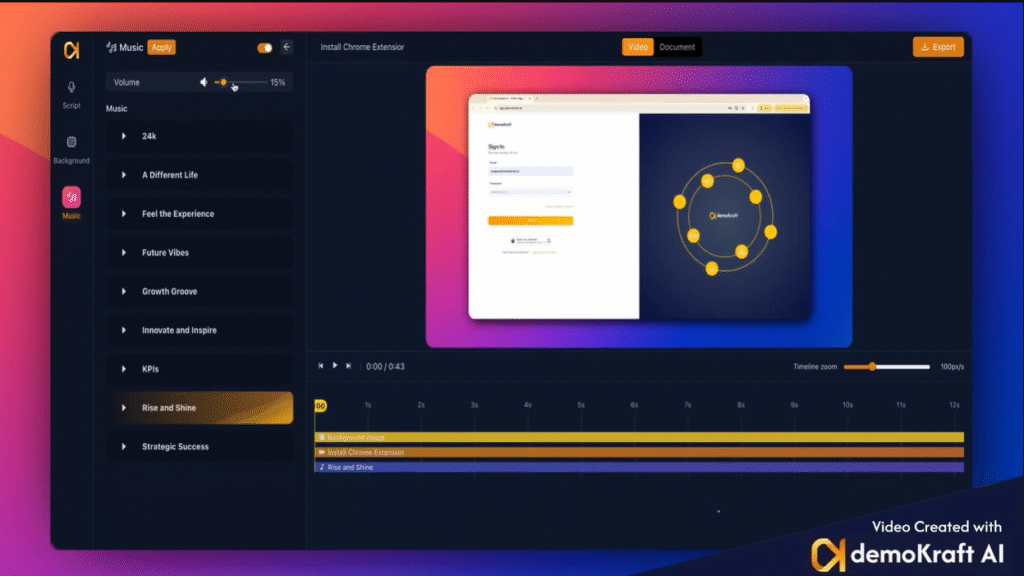
Once you are satisfied with your background music selection and volume adjustment, you can click Apply to save these settings.
To remove an applied music, disable the toggle switch at the top and click apply.
 ## Selecting and Activating Background Music
Activate the Background Music feature within the Music section using the toggle enable switch. Next, browse through the available selection of tracks to find one that best complements the mood and style of your video. Once you've selected a suitable track, proceed to apply it to your project.
## Selecting and Activating Background Music
Activate the Background Music feature within the Music section using the toggle enable switch. Next, browse through the available selection of tracks to find one that best complements the mood and style of your video. Once you've selected a suitable track, proceed to apply it to your project.
 ## Adjusting Volume Settings
After applying the background music, you can fine-tune its volume to ensure it blends appropriately with your video's audio. The default volume setting is 15%, but you have the flexibility to increase or decrease this level based on your preferences and the context of your content.
You can playback the video in realtime and check how the music is applied to your video.
## Adjusting Volume Settings
After applying the background music, you can fine-tune its volume to ensure it blends appropriately with your video's audio. The default volume setting is 15%, but you have the flexibility to increase or decrease this level based on your preferences and the context of your content.
You can playback the video in realtime and check how the music is applied to your video.
 ## Applying Settings and Finalizing
Once you are satisfied with your background music selection and volume adjustment, you can click Apply to save these settings.
To remove an applied music, disable the toggle switch at the top and click apply.
## Applying Settings and Finalizing
Once you are satisfied with your background music selection and volume adjustment, you can click Apply to save these settings.
To remove an applied music, disable the toggle switch at the top and click apply.