> ## Documentation Index
> Fetch the complete documentation index at: https://docs.demokraft.ai/llms.txt
> Use this file to discover all available pages before exploring further.
# Background Image
> Learn how to enhance and manage your video backgrounds using the studio editor.
## Welcome to the Walkthrough
In this guide will show how to apply background image to your videos.
## Opening Your Project and Accessing Background Settings
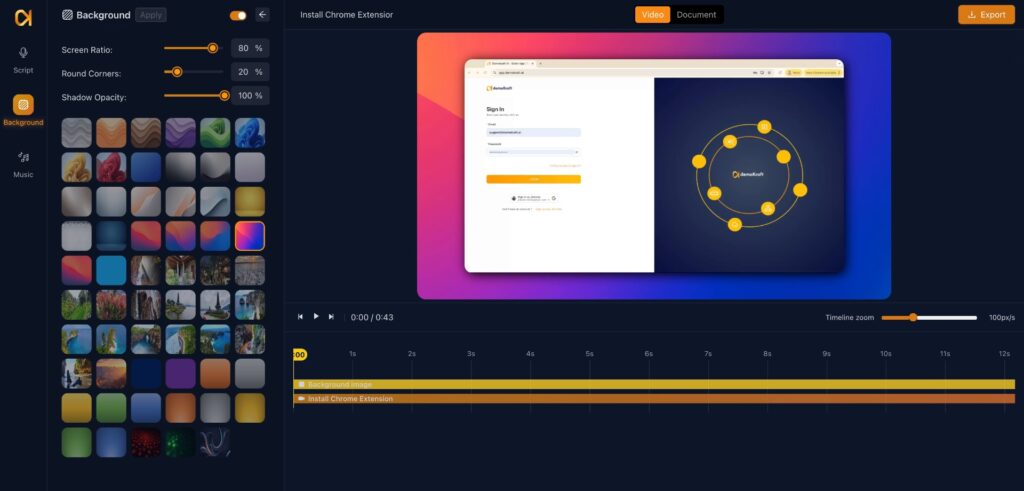
Begin by opening your project in editor mode. From there, navigate directly to the Background section where you can manage and customize your video's background image.
## Activating Background Effects
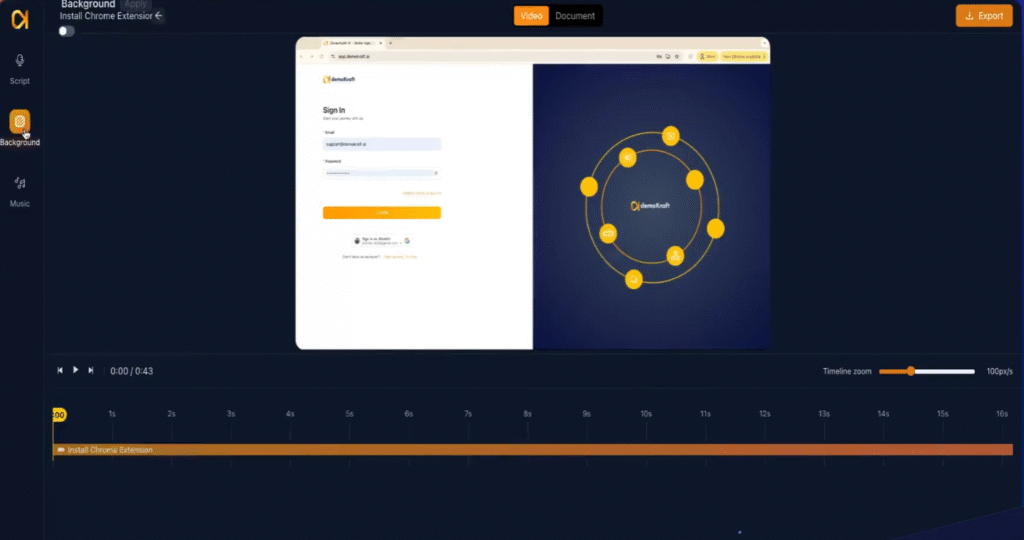
To apply a background effect, simply toggle the activation button. This enables background customization options, allowing you to enhance your video's visual appeal effortlessly.
## Selecting a Background Image
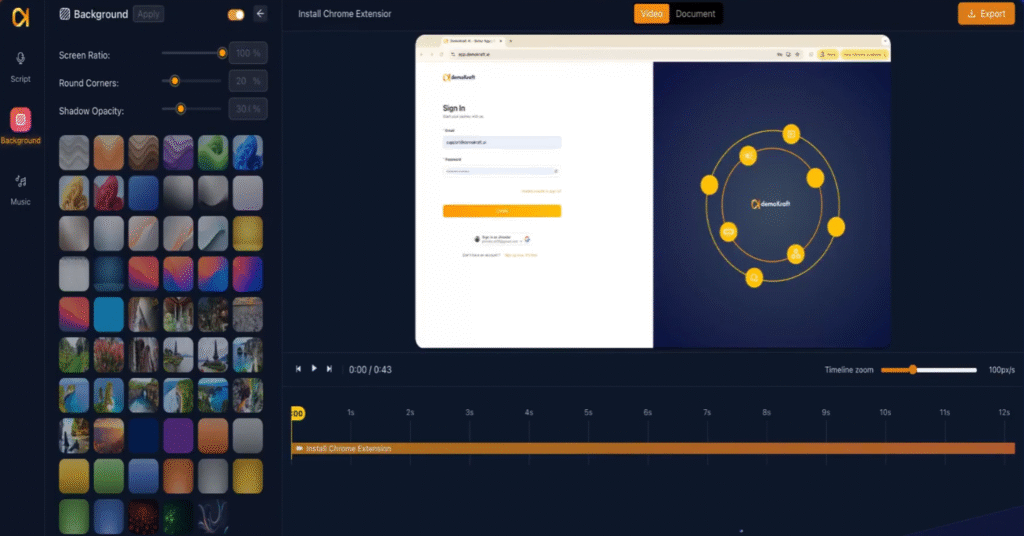
Choose a background image that aligns with your brand's identity. Selecting the right image helps reinforce your brand message and creates a cohesive viewing experience.
## Adjusting Screen Ratio and Visual Effects
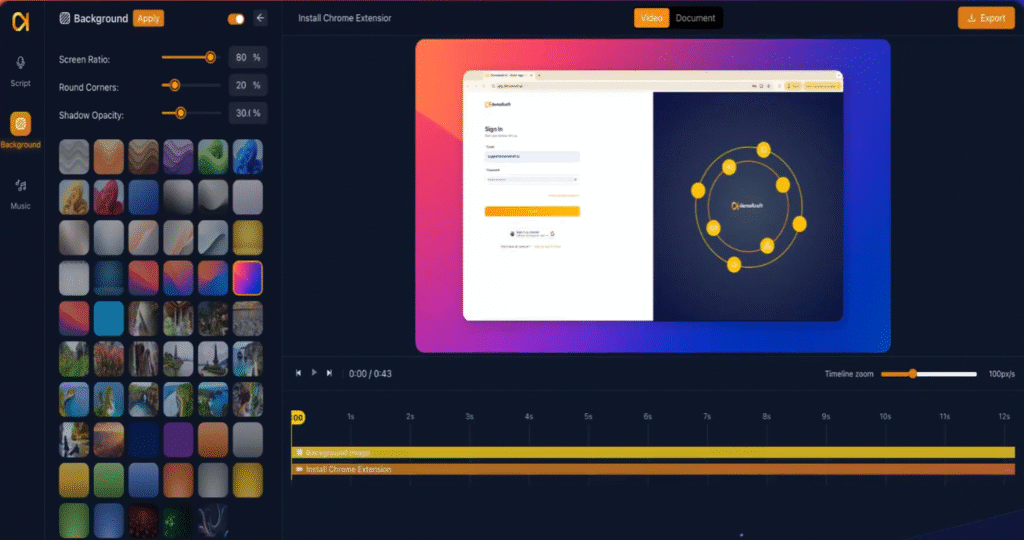
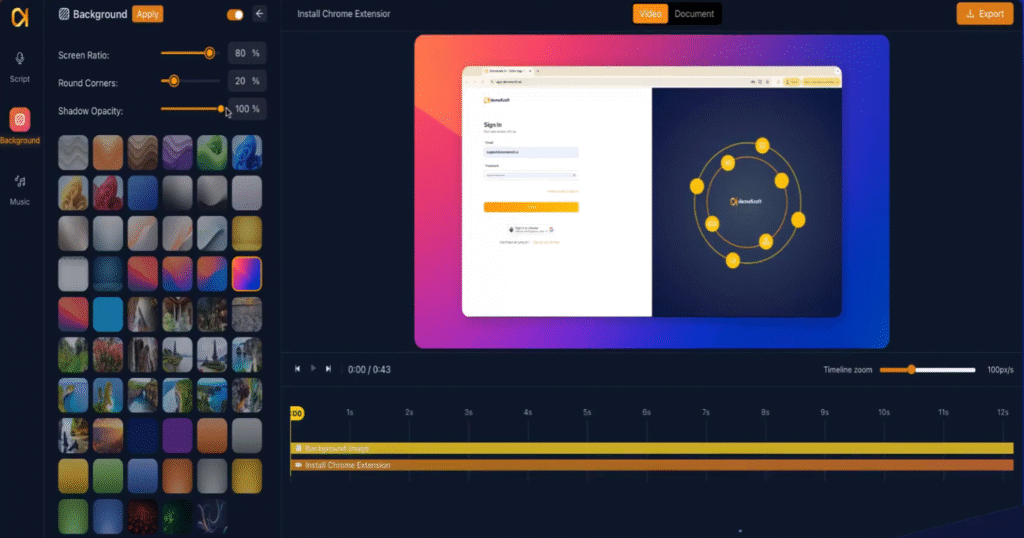
Fine-tune the screen ratio to fit your video's layout, round the corners for a polished look, and adjust the shadow opacity. These settings enhance your video effects and contribute to a professional presentation.
## Customizing Shadow Intensity and Corner Sharpness
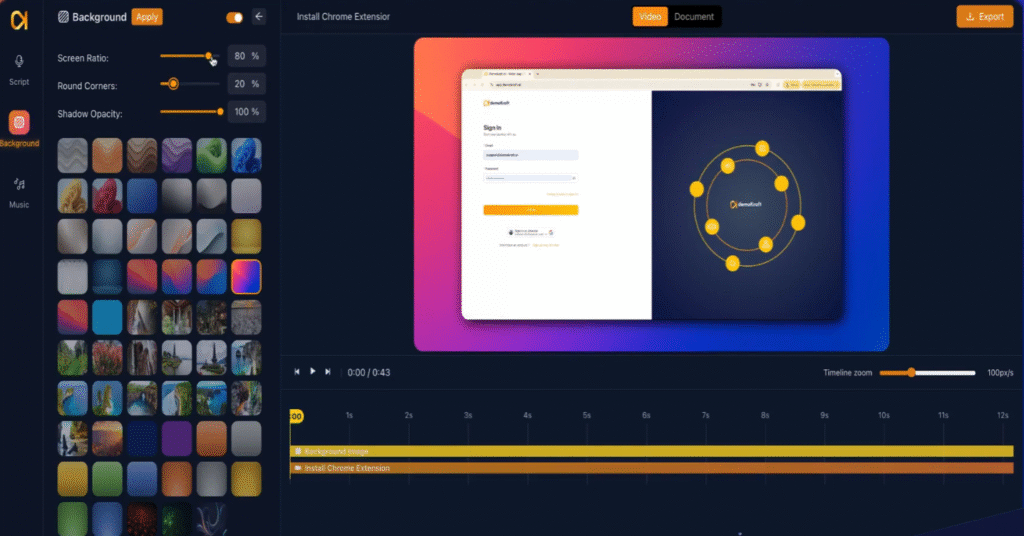
You can modify the shadow intensity to add depth, sharpen the video corners for clarity, and further adjust the screen ratio. These options provide you with precise control to optimize the visual quality of your presentation.
## Saving Your Background Customizations
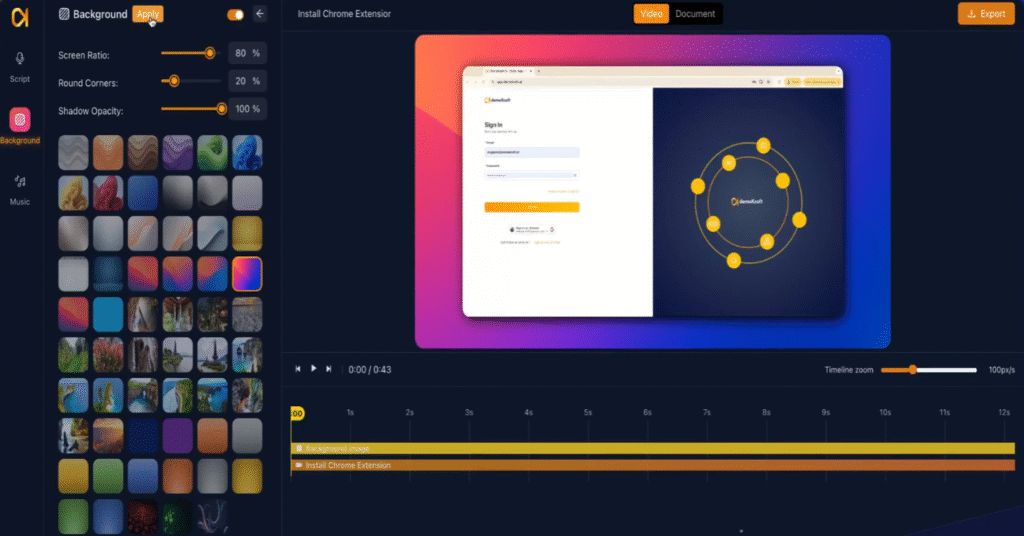
After making your adjustments, click the Apply button to save your changes. If you dont click apply your changes will be discarded. This ensures that all your customizations are preserved and ready for use in your video project.
## Viewing the Final Background Effect
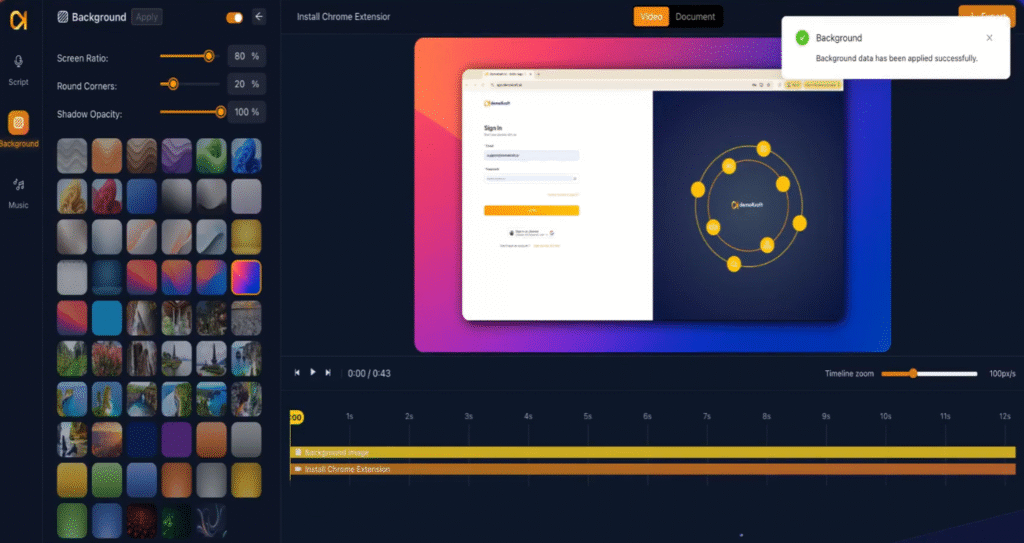
Your background image combined with the applied effects will be displayed in realtime in canvas. You can tweak and adjust config in the config panel as needed and click apply to save the changes.
To remove an applied music, disable the toggle switch at the top and click apply.
## Closing Comments
Thank you. We are confident these steps will help you create compelling and visually appealing video content.
 ## Activating Background Effects
To apply a background effect, simply toggle the activation button. This enables background customization options, allowing you to enhance your video's visual appeal effortlessly.
## Activating Background Effects
To apply a background effect, simply toggle the activation button. This enables background customization options, allowing you to enhance your video's visual appeal effortlessly.
 ## Selecting a Background Image
Choose a background image that aligns with your brand's identity. Selecting the right image helps reinforce your brand message and creates a cohesive viewing experience.
## Selecting a Background Image
Choose a background image that aligns with your brand's identity. Selecting the right image helps reinforce your brand message and creates a cohesive viewing experience.
 ## Adjusting Screen Ratio and Visual Effects
Fine-tune the screen ratio to fit your video's layout, round the corners for a polished look, and adjust the shadow opacity. These settings enhance your video effects and contribute to a professional presentation.
## Adjusting Screen Ratio and Visual Effects
Fine-tune the screen ratio to fit your video's layout, round the corners for a polished look, and adjust the shadow opacity. These settings enhance your video effects and contribute to a professional presentation.
 ## Customizing Shadow Intensity and Corner Sharpness
You can modify the shadow intensity to add depth, sharpen the video corners for clarity, and further adjust the screen ratio. These options provide you with precise control to optimize the visual quality of your presentation.
## Customizing Shadow Intensity and Corner Sharpness
You can modify the shadow intensity to add depth, sharpen the video corners for clarity, and further adjust the screen ratio. These options provide you with precise control to optimize the visual quality of your presentation.
 ## Saving Your Background Customizations
After making your adjustments, click the Apply button to save your changes. If you dont click apply your changes will be discarded. This ensures that all your customizations are preserved and ready for use in your video project.
## Saving Your Background Customizations
After making your adjustments, click the Apply button to save your changes. If you dont click apply your changes will be discarded. This ensures that all your customizations are preserved and ready for use in your video project.
 ## Viewing the Final Background Effect
Your background image combined with the applied effects will be displayed in realtime in canvas. You can tweak and adjust config in the config panel as needed and click apply to save the changes.
To remove an applied music, disable the toggle switch at the top and click apply.
## Viewing the Final Background Effect
Your background image combined with the applied effects will be displayed in realtime in canvas. You can tweak and adjust config in the config panel as needed and click apply to save the changes.
To remove an applied music, disable the toggle switch at the top and click apply.
 ## Closing Comments
Thank you. We are confident these steps will help you create compelling and visually appealing video content.
## Closing Comments
Thank you. We are confident these steps will help you create compelling and visually appealing video content.